Using iMacs to replace Desktop Workstations. A consideration.

UPDATED WITH CORRECTED MATH. See, this is why I’m an editor, not a mathematician!

If you’ve been following along the past few months, you know we’re testing a very nice Dell Workstation as we plan the immediate future of our company and what computers might replace all the Mac Pros we currently run. Since we’re an Adobe / Avid centric shop now, the Dell shows us how we might work in a cross platform world.

But as I have been using an almost 2 year old 27″ iMac in both my Adobe and Avid testing for the past 6 months, the thought dawned on me, why not consider replacing some of the Mac Pros with iMacs? Particularly now that Thunderbolt add ons are becoming more prevalent and giving us the same capabilities as all those internal cards we’ve used through the years. In particular the AJA IoXT which is essentially a Kona 3 in a small box.

I purposely have been testing on the iMacs with an eye towards setting up a cluster of them for our Assistant Editors on upcoming series. But this older one is performing so well, it got me to thinking of even replacing many of our primary edit systems with iMacs too.

While Adobe keeps touting the added advantages of the nVidia CUDA based graphics cards, I have to say their software runs very well on the ATI based iMacs. In fact our entire shop, except the new Dell and the Resolve workstation all run on ATI cards and the entire Adobe Suite runs brilliantly on all of them. We honestly don’t miss the CUDA “extra realtime features” because we’ve never had them.

Avid doesn’t have any sort of CUDA requirements at this time (not sure if they ever will) so I see the same snappy interface operation across the board no matter which machine its running on. Avid is definitely the most efficient software we’ve edited with to date, it runs faster on the iMacs that FCP ever did, even on the Mac Pros.

Now before we move forward, keep in mind my situation with my facility. We have 5 edit suites currently running along with our ProTools / Resolve Theater. We’re set up for 9 total edit suites at the moment and can expand to 18 or more at any time, so we need a bunch of machines whenever we upgrade. So from a business standpoint, I have to look at the most effective way to spend our dollars.

If you are a one man band, a 1 or 2 machine shop, then you really want to buy THE fastest and most powerful system you can afford because you’re asking that machine to do everything for you. Edit, Graphics, Render, Output, etc…. I always recommend to anyone that’s a single or two machine shop to have a powerful desktop system unless you absolutely must have the portability of a laptop for your work. Desktop machines, while much more expensive when configured for video editing, will always give you the fastest performance. So keep in mind that my thoughts here are more about me replacing a series of machines vs. a smaller shop that might only need to replace one or two systems.

So what do I give up by dropping a bunch of Big Iron machines in favor of the iMac? Render speed primarily. Big iron will always render faster than an all-in-one ever will because there’s a lot more room for processors and large power supplies to drive those processors. Not to mention a ton more RAM for the same reasons. But for the type of work we’re doing day in, day out, we don’t need super fast rendering all the time on every single workstation.

For the most part we’re doing documentaries and very soon, reality programming. Projects that are storyteller driven, not fx or even transition heavy. So for my situation and with the amount of machines I need to upgrade, do I really need to have all powerful systems in every single edit suite? Based on the performance of my 2 year old iMac, that answer appears to be”no.” I’m thinking a new strategy will be to outfit every single edit suite with a 27″ iMac and then have one or two “big iron” systems, maybe running Avid Symphony, Autodesk Smoke and the Adobe Creative Suite, which will be the “finishing systems” if you will. We’ll still keep the ProTools system and the Resolve system as stand alone Big Iron as well, so I’ll have four Big Iron systems and a whole cluster of iMacs to do most of the work.

All of the machines will connect directly to our 48TB (soon to be larger) SAN because it’s all ethernet based. Unlike some earlier iMacs that crippled the Ethernet port, Apple finally replaced the ethernet port with a unit that again supports Jumbo frames so we don’t lose that connectivity.

Let’s take a look at how the iMacs compare to several Big Iron systems in terms of cost. I’ve tried to make all of the Big Iron systems similarly spec’d so it’s somewhat of an even comparison. They’re all Dual Processor, 12 Core machines except where noted because when I buy a Big Iron machine, I buy one of the fastest I can afford. Note that the Dell Precision T5500 is the unit we’re testing here in the shop and the HP Z800 was chosen because it’s the machine most recommended to me by my Windows based colleagues to compare to the Mac Pro.


27″ iMac priced on Apple.com 4/8/2012: $3218.00

3.4GHz Quad-Core Intel Core i7; 16GB 1333MHz DDR3 SDRAM - 4x4GB; 2TB Serial ATA Drive; AMD Radeon HD 6970M 2GB GDDR5; AppleCare 3 year warranty.

UPDATE: I have confirmed through OWC.com that the 27″ iMac can take 32GB of RAM.


Mac Pro priced on Apple.com 4/8/2012 - $9958.00*

Two 2.93GHz 6-Core Intel Xeon “Westmere” (12 cores): 48GB (6x8GB) RAM: Two 1TB 7200-rpm Serial ATA 3Gb/s hard drive: ATI Radeon HD 5770 1GB (standard Card): AppleCare 3 year plan. *nVidia Quadro 4000 purchased separately - $810


Dell Precision T5500 Workstation priced on Dell.com 4/8/2012 - $8,268.00*

3.46GHz 6-Core Intel® Xeon® Processor X569: nVidia Quadro 4000 graphics card: 48GB (6x8GB) RAM: Two 1TB Internal SATA drives; Firewire PCIe card: 3 year On Site ProService: *included “instant savings” of $620 according to the website, no BluRay Writer option, single processor, all USB Ports are 2.0 standard.


Dell Precision T7500 Workstation priced on Dell.com 4/8/2012 - $11,348.00

Two - 3.46GHz 6-Core Intel® Xeon® Processor X569 (12 Core) : nVidia Quadro 4000 graphics card: 48GB (6x8GB) RAM: Two 1TB Internal SATA drives; 16X DVD Writer: Firewire PCIe card: 3 year On Site ProService: *included “instant savings” of $615 according to the website, no BluRay Writer option, All USB ports are 2.0 standard.


HP Z800 FF825AV Workstation priced on HP.com 4/8/2012 - $13,667.00

Two 3.46 6-core Intel Xeon X5690 processors (12 cores): nVidia Quadro 4000 graphics card: 48GB (6x8GB) RAM: Two 1TB Internal SATA drives: BluRay Writer; Broadcom 5761 Gigabit PCIe card: Firewire PCIe card: 24×7 On Site response - 3 years. ($239) Note: All USB ports are 2.0 standard. It’s an upgrade to USB 3.0


And because I know someone will ask about the HP All In One workstation, ala iMac, here’s their 27″ configuration….

HP Omni 27 Quad series priced on HP.com 4/8/2012- $2049

Intel(R) Core(R) i7-2600S processor [2.8Ghz, 8MB Shared Cache, DMI 5GT/s]: 8GB RAM: 2TB 7200 rpm SATA hard drive: 2GB NVIDIA GeForce GT 540M: Slim Slot Blu-Ray writer: HP Total Care 3 Years: Note: No Thunderbolt or Firewire 800 option.

I just don’t see this in the same class as the iMac for a video workstation. The specs look very underwhelming vs. the 27″ iMac I spec’d out first.


So let’s do the math based on replacing all 5 of my current edit suites. Just what we’ve spec’d here. No software, no add-ons, nothing, just the boxes as I spec’d them above.

5 iMacs: $3218 x 5 = $16,090

5 Mac Pros: $9958 x 5 = $49,490

5 Dell Precision T5500: $8,268 x 5 = $41,340 (note this is a single processor machine)

5 Dell Precision T7500: $11,348 x 5 = $56,740

5 HP Z800: $13,667 x 5 = $68,335

Base cost for the 5 iMacs alone is over $33,000 less than the nearest Tower and over $24,000 less than the nearest Dual Processor machine, though honestly, the odds of me purchasing that particular 12 Core Mac Pro are slim to none. So in reality, I’m over $40,000 cheaper than the lowest cost 12 Core Dual Processor machines I would consider buying.

Now I need to add 5 AJA Io XT boxes to those systems for Video I/O because we still use a ton of tape in our work and they will also feed our Flanders Scientific reference monitors.

5 AJA IoXT: $1,495 x 5 = $7,475

Grand Total now $16,405 + $7,475 = $23,880

I’m still sitting over $32,000 below the 5 Dell T7500s. Or in other words, I can get 5 brand new iMacs with the IoXTs, and get 1 Dell T7500s for our “Big Iron” finishing station and still be about $12,000 ahead. Switch that to the HP and I’m still about $21,000 ahead. But with 6 workstations instead of 5. Heck I can even buy two of the Dell Big Iron systems and still come out ahead.

I already own a slew of 24″ monitors so each iMac can run in dual screen configuration without the need to purchase any new monitors at this time. And as I add more iMacs to the mix, not every single one of them will require the IoXT if they are doing primarily offline work. So that will save me some more money moving forward.

One other expense I would have to explore is re-engineering our shop so the primary controls for everything are in the edit suite and not in the Machine Room as they are now. All of the machines are side by side with video I/O, machine control and everything tied together via patch panels. Now the primary patch panels / machine control will stay in the machine room, but the video I/O devices will be in each suite. So that will require some re-wiring, but not a whole lot.

With numbers like these, and the high quality performance of the iMacs, you can see why I’m strongly considering making the iMacs our primary workstations throughout the facility. And while they might cost a bit more, I think our “Big Iron” systems will be Wintel moving forward. Just too many good options out there vs the limited choices from Apple. And who knows, we just might be running OS X on a PC soon.

So yep, even more for us to consider as we move forward, “Post FCP” in our facility. The options are almost endless and there’s no need to rush into a decision we’ll regret later. Now instead of just putting the fastest most powerful workstation in every single situation, I have more options to put machines more tailored to the task and spend the extra money where I actually need to.

More food for thought……


It’s Not a Mac - Windows Testing Part 3

If you’re contemplating moving to Windows and you own a pretty recent Mac Pro, one of the great advantages today is that most of the “Mac 3rd party hardware” also operates in a PC. This is awesome because so far it’s saved me over $2500 in new cards I would have had to purchase for the Dell. Observe.

Dell Precision T5500 meet Mac Pro, Mac Pro meet Dell Precision.

For the time being, we’re going to run the Dell as a stand alone workstation. Why? Because NAB is right around the corner and the awesome folks at Small Tree Communications are gearing up for some new reveals at the show. Thus their time is limited right now to properly test and configure the Dell to work on the SAN. So for short term, we’re going to run it with a local 8TB SAS/SATA RAID.

This requires the installation of an ATTO SAS/SATA Host Bus Adapter to connect the RAID to the computer. A brand new R680 card is $999, but I have an older model, yet very capable R380 card sitting in the Mac Pro that the Dell is going to replace. So I called Atto to confirm that the card would work in a PC and they said, “it should, just flash the card with new firmware when you move it.”

Atto R380 SAS Host Bus Adapter located in the top slot of the Mac Pro.

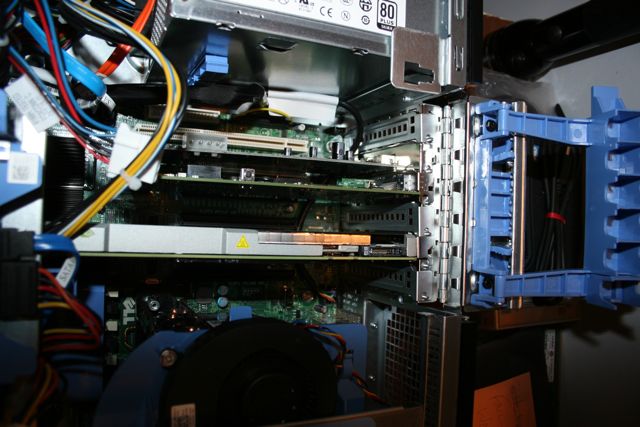
The very same Atto R380 card relocated (in the middle) to the Dell Precision workstation. The AJA Kona LHi sits just above it.

After installation I downloaded the appropriate Driver, Flash file and Atto Configuration Tool application and sure enough, the card came right up online the way it should. Connected the RAID to the card and set about re-building the RAID to be used with Windows 7.

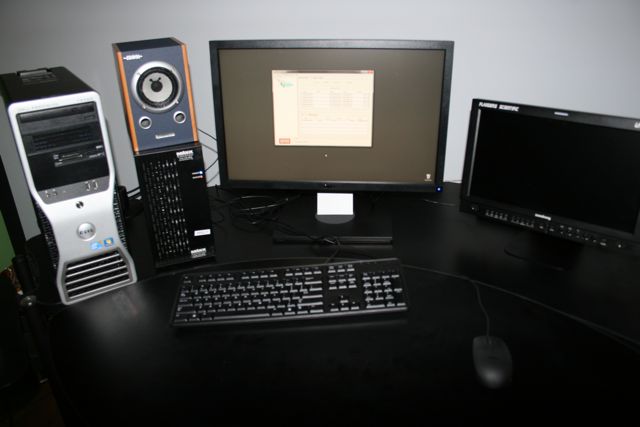
The Dell Precision as it sits in Edit 2 right now with the RAID to its immediate right. That’s the Atto Config Tool on the screen rebuilding the RAID. After testing the unit will move into the machine room.

So another plus for those of you contemplating a switch from the Mac Pro to PC. It’s very likely your third party cards will install into the PC. Just check with your manufacturer before you do anything to ensure it will work and also ask if there are any particular slot or installation orders to follow.

Once we get everything formatted, do a few quick tests, we’ll move the entire rig into the machine room and throw it right into Post on Season 2 of the PBS Series, This American Land. You haven’t seen me do a lot of reporting on this Dell Precision machine because there’s really not a lot to say quite honestly. It works, it’s fast, at some point we’ll have to do some benchmark tests comparing renders, etc…. but we need this machine to get into Post pretty quickly so we’ll have some more performance updates, etc… as we start to beat on this thing for a production schedule that goes through October.

It’s gonna be a fun ride, more updates as we can!

Tips for attending NAB 2012

Springtime is upon us and that can mean only two things. Allergies are raging across the United States and it’s time for the annual National Association of Broadcasters convention. Before you head off to Las Vegas, here’s some tips from this seasoned attendee to make the most of your time.

“Mirage” is a great analogy for what the Las Vegas Skyline is……


Getting to and from the show.

NAB does a great job providing free shuttle transportation to and from the show to many of the hotels along and near The Strip. Whether you stay in one of these hotels or not, as an attendee, you have access to these busses. So look at the NAB Bus Schedule and pick a hotel nearby to pick up the shuttle, be sure to have your convention badge on you as you generally have to show it to the bus driver to get on.

I tend to take the shuttle busses to the show and then the Las Vegas Monorail from the show depending on what time I’m leaving. Busses can get swamped at the end of the day and while the Monorail costs money, it tends to move more people faster out of the event. I just hop off at the hotel the closest to mine on the way back.

Hangin’ with AJA President Nick Rashby, one of the nicest guys you’ll ever meet.

Dress for comfort, especially your feet!

NAB is a big show, as in thousands upon thousands of square feet of exhibition space. Let me say that again. NAB IS A BIG SHOW! You may have been to big shows before, but imagine walking through 4 football stadiums (US or European) to see everything and that kind of gives you a sense of how large this thing is.

It cannot be said enough that comfortable shoes are a MUST at this show. I wear running shoes that have fabric that breathes. I have no idea why any women wear heels to this show nor why men wear wingtip business shoes. They are simply not comfortable to walk around 4 football fields or to even stand still for hours at a time. While you might want to make a fashion statement to impress those you might meet along the way, your feet will thank you. Remember your feet will swell up standing and walking all day long, keep the shoes comfortable!

For dress, I tend to go with comfortable jeans and t-shirts or short sleeved button down shirts. South Lower, where most of Post Production is housed, can get a little warm on Monday / Tuesday just because of the thousands of bodies in the hall. Check the weather forecasts before you come for nighttime temps, as oftentimes a light sweater or jacket is good at night when the temps drop. While 60 degrees might sound nice and warm with just a T-Shirt, with no sun and a 10-15 mph wind, that light jacket you brought along will feel much better.

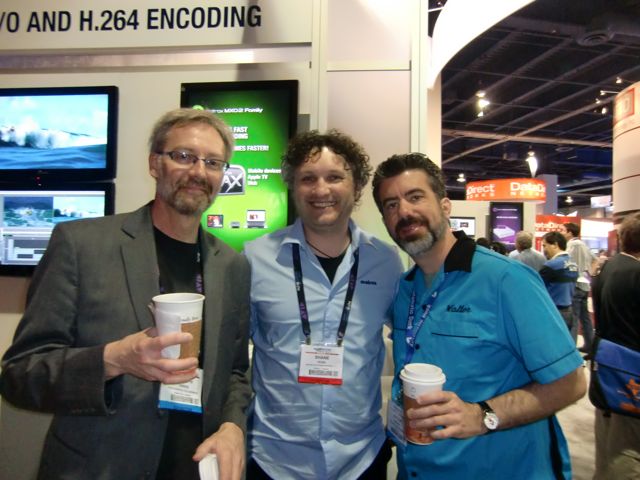
Joseph Owens, Shane Ross and myself dress for success at NAB. Yes, my bowling shirt was a huge hit and it will make a return appearance in 2012. Note that Coffee is the official drink of NAB.


Plan Ahead, Use Reference Points.

A big key is to plan ahead and then prioritize your plan. There is so much to see that it’s easy to get overwhelmed at the show, it’s literally the biggest toy box for all of to play in with everything we’d ever need to make great shows. All the stuff you read about on the internet and in magazines is on display. It’s easy to get caught up spending way too much time on some really super cool toy that you don’t need, can’t afford, would never use, but it’s just so freakin’ cool and before you know it, two hours are gone.

So pick the toys you want to see, then prioritize them in order of what’s the most important thing you need all the way down to those that would be fun to see, but it wouldn’t matter if you missed them. You will accomplish much more and see those things that will make a difference for you in the next 12 months.

The show floor oftentimes makes no logical sense. Booth numbers that go smoothly from number to number suddenly veer off into nonsense and you stand around saying “Well it should be right here, it’s the next number in sequence.” Fortunately “there’s an app for that.”

If you have a smartphone or tablet download the fabulous NAB Show 2012 app. I used this last year and have already made my plans with it for this year. My favorite feature is that you can highlight all the folks you want to visit ahead of time. During the show, the app will show me where I am and where my target destinations are, makes for easy navigation around the show. Well, easier navigation, you’re still going to have those “WTF?” moments when the booth numbers make no logical sense….

Another great way to help with navigation on the show floor and to find your way back to location is to use reference points. Pick a banner, a booth, whatever that has a high sign that you can clearly see to use as a reference point to find your way around. I often use the AJA Video Systems booth and one of the music libraries in South Lower as my reference points for example. I can visually see that point and if I know a booth I’m looking for is in the general area, I can use that to find it.

In particular, use these reference points to find the bathrooms. Small thing I know, but at least in South Hall, they are along the far left and right walls and finding these easily is a good thing. :)

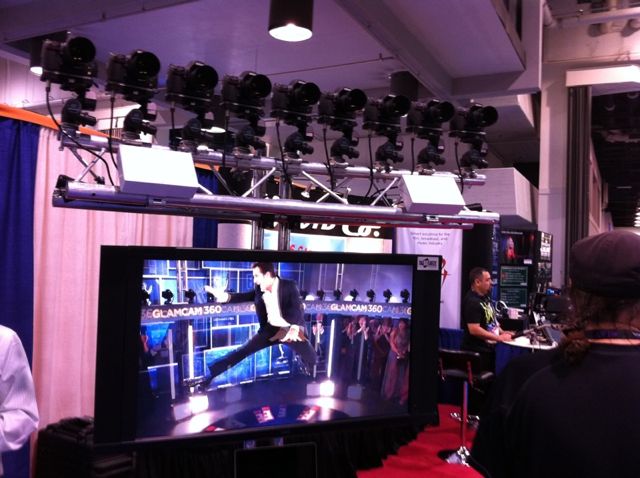
A 360 rig like this makes a memorable reference point. If I recall correctly, there was a great coffee stand nearby so that would make this a VERY important reference point.


Stay tuned for the Sunday announcements.

Many companies presenting at NAB will either have press events or issue press releases on Sunday announcing their latest toys that will be on display in the exhibition halls. Websites such as CreativeCow.net have great news feeds that help you follow along with the almost dizzying array of releases.

Make notes of the releases that are of special interest to you so you’ll know what that company is debuting, locate their booth number, and you can prepare some questions for the folks you’ll meet. EVERYTHING sounds incredible in the press release, seeing it on the show floor and asking the right questions can get you a better picture of what the toy can and cannot do.

With Grant Petty of BlackMagic Design. What will they announce this year? Stay tuned to the press releases….

Limited time to visit? Come later in the week.

If you’ve already made your plans, it might be too late for this, but if you really want to get hands on with equipment and software in the booths and ask questions, Wednesday and Thursday are the best days. Monday and Tuesday the crowds are the largest. Especially Thursday the crowds are always much smaller giving you much better access to the booths.

If you are going to be there all week, my advice is to avoid the “big booths” Monday and make discoveries in the outlying smaller booths in all the halls. Especially lighting and audio always seem to have the smaller crowds and they make great areas to visit, especially Monday all day.

Also take in the outdoor exhibits between South and Central Hall where there are remote production trucks, satellite uplinks and other very cool displays. While you may never have the need for a remote production truck, just walking through one and seeing how they have managed to configure an entire production facility in a very small footprint can certainly give you some ideas for designing your own production space.

In Central Hall I always go in to check out what’s the latest in microphones and field recording because when a show idea comes up, for whatever reason I start thinking about the microphones I saw and how we can use them. Last year it was microphone that they were dipping in water yet I could still use them with perfect clarity. I.e. mics perfectly situated for rainy or wet location without compromising the sound.

I’ve also found some really cool widgets, software and tools for my work that I never would have found without just strolling “off the beaten path” as it were, such as my incredibly awesome Anthro edit consoles.

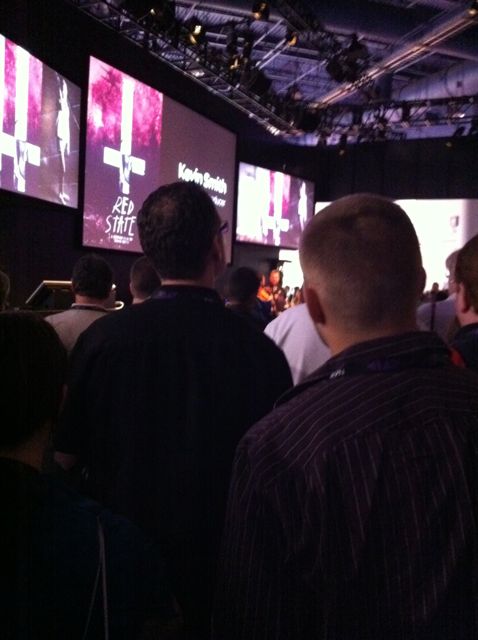
Avid booth in South Hall Upper Floor during a Kevin Smith presentation. Do you see him? He’s that blurry lit head sticking out in the middle left. Booths can be swamped on Monday and Tuesdays, especially during major presentations like this.


Pace Yourself, stay hydrated.

Unless you are only in Vegas for one day (because your cheap boss wouldn’t spring for at least two days) pace yourself, nothing is going anywhere for four days. It’s not like those stupid 4am day after Thanksgiving sales, there’s nothing that’s going to disappear except maybe some of the free swag that you’ll probably throw away when you get home anyway. There’s no need to be the first one at every booth, let everyone else run ahead, have a good laugh at their expense (honestly it’s funny to watch the cattle call of the folks who go bolting down the hallways to be first at whatever booth) and get your day started.

Many of the booths have chairs, small theaters with presentations throughout the day which are great to just sit and take a break for a few minutes. Sit in on some of the presentations that are about the toys you are considering. Sure these are well planned 15 - 30 minute presentations, but watching them can give you a good sense of whether the toy is what you expected it to be. In addition, the presentations allow you to form questions to pose to the folks working these toys in the booth. And there’s that sitting down for 15 - 30 minutes part that’s a good thing for your feet.

And above all stay hydrated, drink lots of water. The air is very dry in Las Vegas and it’s easy to get dehydrated with all the walking around you’re going to be doing. Not just at the convention, walking around the streets of Vegas will wear you out if you don’t stay hydrated. One of my first stops every year is to CVS pharmacy or small shop on the street to pick up a 6 pack of bottled water that I can refill as the week goes on.

Remember that Vegas also uses a lot of forced perspective, so things that appear to be right down the block are actually 1/2 mile or more away. For example what looks like a short walk from New York, New York Casino to Treasure Island is more like a 30 to 45 minute walk up the street.

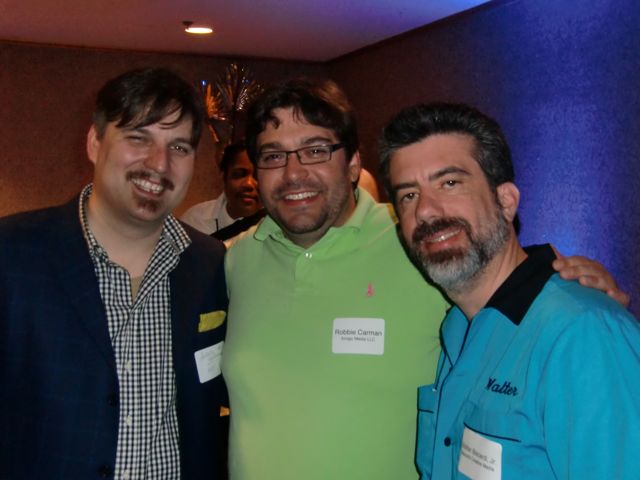
Alexis Van Hurkman, Robbie Carmen and myself stay good and hydrated in Vegas.

Evening Events.

Many manufacturers and groups have evening and after hours events. These are as simple as meet and greets to the world-renowed AJA VIP party. Some are free and some cost to attend. For the most part they’re fun and these are generally the best place to simply hang and meet up with your peers. You’ll find many of the bloggers, the writers, and folks who post on the various forums and tweet away all year long.

Now the same suggestions for the main show, also apply to the evening events. Primarily, pace yourself. There are a LOT of evening events, pick and choose a few, if you don’t make them all, so what? It’s ok. And manage your intake of alcohol. Yes everyone likes to party and have a beer or two, but I’m amazed at the number of folks revert back to frat college days and get completely wasted to the point where you really don’t even want to be around them. As many of the beer companies remind us, “Drink Responsibly.” And at most of these you’re going to do a lot of standing, so again, wear comfortable shoes!

My absolute favorite event now, which I finally got to the for the first time last year, is the Media Motion Ball. It’s a smaller gathering, costs a bit more money because they serve a very nice buffet sit down dinner and is more low key than some of the other larger gatherings. It’s quieter so we can all chat and it’s a very friendly atmosphere. Not much in the way of product demos, more in the way of artist demos and a really good raffle to end the event.

The biggest event for the Post Production industry is always the SuperMeet. Part carnival, part demonstration, always entertaining. Home of the one of the largest raffles in all of NAB and the place were Apple so famously (infamously?) launched Final Cut Pro X by kicking all other presenters out of the event. It’s also a great place to find out if there are any Post Production User Groups in your area as they do a parade of user groups as part of the event.

Maxx Digital always has a fun Cocktail Party where anyone that wants to show up, simply shows up at the Hard Rock Casino bar at the appointed time. You can meet the famous Bob Zelin who is one of the most amusing and smart characters I’ve ever met.

Most manufacturers and groups will have events posted on their websites or at the booths so check them out and decide if anything works for you. And if you don’t want to go out and party, then don’t, there are so many great restaurants and food joints all over town, go enjoy yourself at one of those.

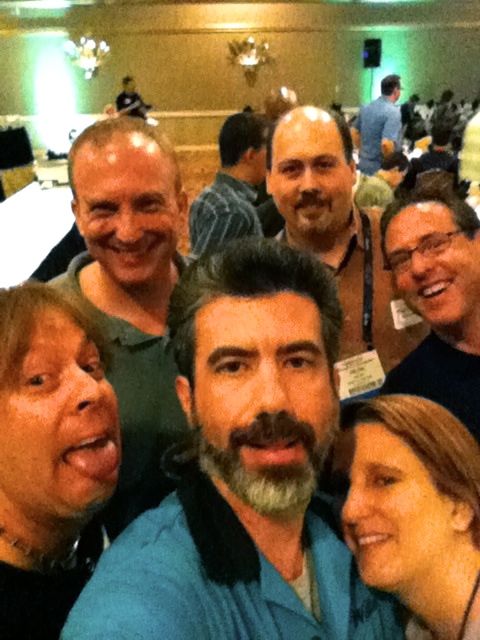
A motley crew at last year’s Media Motion Ball.

I forgot my hard drive, power cord, etc…

The Fashion Show Mall (weird name) located near Treasure Island and the Wynn hotel has an Apple Store and other electronics stores that should have whatever you left behind or lost on your way to Las Vegas. Other good stores and a great food court in there as well.

By the way, bring a small power tap or power strip so you can recharge all that electronic gear you need at night.


Beyond the Show, my suggestions for food and fun.

You’re in Las Vegas, there are literally tons of things to do besides gambling. Quite honestly gambling bores me, I used to work in the largest casino in the world and slot machines and such never interested me. I do place one bet each year on the weekend NASCAR race, but beyond that, not much else. So here’s some thoughts beyond the obvious gambling and drinking.

I can’t over emphasize how good the restaurants are both on and off the Strip. Buca de Beppo is wonderful off the strip. Without a doubt, the best buffet for me is the Spice Market Buffett in Planet Hollywood. If you like Indian cuisine as much as I do, the Gaylord at Rio is quite good.

The best grouping of restaurants in one hotel is the Venetian with Wolfgang Puck’s Postrio being the standout, but there are a lot of great choices in that one hotel including the Grand Lux and an awesome Mexican Cantina. If you go downstairs in the Shoppes at Palazzos you’ll find an absolutely killer Espressamente Illy coffee house / gelato shop. My favorite coffee in Vegas.

One fun thing that presents tons of photo opportunities is the Madam Tussaud’s Wax Museum in the Venetian Hotel. What makes it so fun is that nothing is behind glass, it’s all out so you can stand and pose with the wax people. It’s silly fun with something like 54 celebrities or so to get your picture with in a walk at your own pace style.

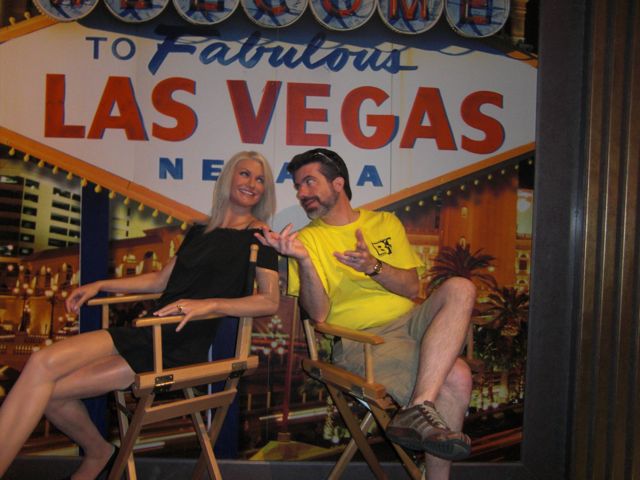
Cameron Diaz and I discuss the ramification of Final Cut Pro X and how it might impact the Post Production industry. She seemed to be partial to Adobe.

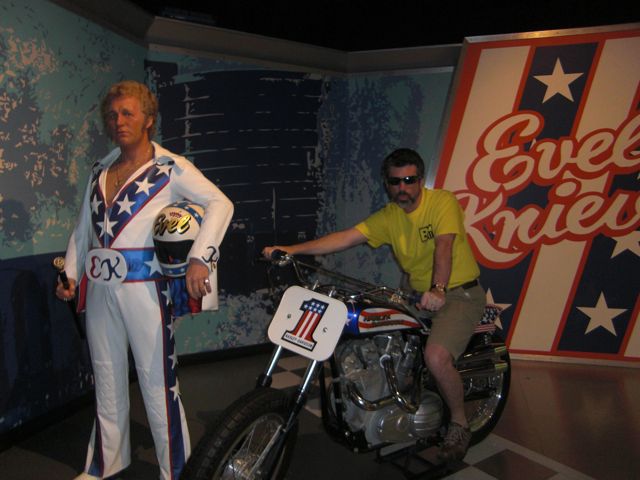
Ready to recreate the famous Ceasar’s Palace Fountain jump. The motorcycle revs up when you sit on it.

Of the “big shows” in I’ve seen in Vegas, “O” at the Bellagio simply takes the cake for spectacle. I spent as much time enjoying the show as I did marveling at the staging and just trying to figure out what sort of a warped mind can actually create some of this. Simply stunning both creatively and technically.

A very intriguing show that we found out about too late last year is Absinthe outside Caeser’s Palace. A small venue magic / variety / vaudville type of show that has rated quite well. We have not seen it, but might make it this year or next.

Most of all have fun!

There you go, some tips and tricks from a veteran of the Las Vegas NAB Scene. Most importantly have fun. Bring lots and lots of business cards, shake a lot hands and make yourself some new friends you can call upon when need advice. We’ll see you there!

One thing I will miss dearly this year. Dinner & Gelato with my dear friend Dan Desmet (2nd from left). The Desmet Family carries on his legacy with the incredible Flanders Scientific product line. We will lift a gelato in your honor this year Dan!

Aspiring Sound Designers should see The Hunger Games

The title says it all. After seeing The Hunger Games yesterday, which was a very good movie, the thing that stood out for me the most was the Sound Design. There were so many opportunities for the designers to “just go loud and big” like a typical blockbuster action film (see any Michael Bay film) but what they came up with perfectly matched the mood and feel of both the film and the characters within.

In particular the use of silence or near silence at key moments in the film. Where things could have been loud, boisterous, typical slasher sounds of death and destruction, we’re instead “hearing it through the ears of Katniss Everdeen” as a confused person thrown into an unbelieveable situation. She has tuned out the sound for her own sanity. At least that’s the take I came away with.

Three scenes in particular that stand out from a sound design point:

The actual start of the Hunger Games when the kids sprint off the platforms.

The hallucination scene with the effects of the tracker jacker venom.

The aftermath of an explosion triggered by Katniss’ arrow.

But quite honestly, the entire sound design to me is understated and precisely what the film needed. It’s not designed to stand out and make you jump in your seats because they can and it seems like “it’s the stereotypical thing to do.” The sound was designed to keep you in the moment, in the story, not just make loud sounds because they can. Even the canon that signals the death of a tribute is quite understated rather than an ear shattering boom that we would probably get from your typical action film.

So I would suggest any aspiring sound designer should check out this film, buy it when it comes out on dvd / blu ray so you can study it further. Heck aspiring Directors should buy it too for Gary Ross’ excellent direction and adaptation of the book.

Here are the full credits from IMDB, scroll down to find the entire Sound Department credits.

And while we’re recommending movies for sound design, definitely pick up a copy of WALL-E with yet another incredibly well done example of sound design to carry a film. Particularly the first 20 minutes with zero dialogue.


The right way to switch your OS

As part of our transitioning the facility over to Avid Media Composer 6 for broadcast work, we’re also transitioning our Mac Pros from Mac OS 10.6 (Snow Leopard) to OS 10.7 (Lion). My original plan was to simply wait for OS 10.8 (Mountain Lion) to come out this summer, but as MC6 was designed to run in Lion and some drivers we’re about to install require Lion, it made sense to go ahead and upgrade everything now.

When transitioning from one OS to another, the worst thing you can do with your professional creative workstation is to simply Upgrade your OS. That is, allow the OS software to simply overwrite the existing OS. This usually results in a lot of instability because it’s not a clean install, there is a lot of deleting / overwriting / deleting / overwriting and so on. Professional applications run their best when they are simply installed cleanly into the OS. There’s also a lot to be said for a perfectly stable operating computer system.

So here’s how we do our upgrades on our Mac Pros.

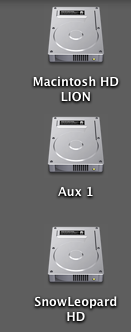
1 - Install a fresh hard drive inside the computer and format it with the name Macintosh HD LION.

2 - Install Mac OS 10.7 to that fresh hard drive.

3 - Re-install all pertinent software onto the Mac OS 10.7 hard drive.

4 - Leave the original Mac OS 10.6.8 Snow Leopard drive alone. If we need to run anything off that hard drive, we simply re-boot the computer to that drive.

Here’s how it looks on the desktop, these are three physical drives inside the computer. The topmost drive is always the one we booted off of, so we even know at a glance which OS we’re running.

The Aux drive is where we keep graphical elements and such. So now what we’re going to do is essentially “freeze” our Final Cut Pro 7 system on the SnowLeopard HD. We will NOT be installing FCP 7 on the Lion drive because there’s really no reason to. It’s not going to run that much faster and we’re not going to be using it much at all moving forward, so why bother installing it on the Lion drive? Anytime we need to run that software, we simply reboot to the Snow Leopard HD.

Now if you’re running a laptop or an iMac, you could make a Disc Image of your Snow Leopard drive to an external drive for safe keeping. Then if you need to reboot in Snow Leopard you can simply boot off the external drive. However you do the OS switch, always do a clean install of the OS and then install all of your software fresh onto that hard drive.

Oh and if you’ve not upgraded to Mac OS 10.7 Lion yet, you should be aware that the installer will self destruct after installation is completed. And it’s a 4 GB file download. So if you ever need to install it again, you’ll need to download it again. All 4 GB. If you’d like to keep a copy of the installer around, follow these instructions on Cult of Mac.

Because you asked… More on our Switch to Avid MC6

Our short and sweet blog post yesterday about switching to Avid MC6 for our broadcast work touched off a flurry of requests for yet more information on our decision. Folks want to know “what specific features did it have that the others didn’t.” “Can you break it down feature by feature, why you made the switch?” ”You seemed so gung-ho about Adobe early on in your switch.”

Honestly I can’t break it down like that. For almost 6 months now we’ve had one edit suite running MC6 and one running Adobe Creative Suite 5.5 pretty much full time in each room. FCP 7 has been used in both rooms as necessary and I’ve also been cutting with Adobe CS 5.5 primarily on smaller projects. So this has been a real solid test. Three rooms cutting real projects with real clients in the room.

In a situation like this, you don’t compare “feature by feature.” You compare, “how does this work with the client looking over my shoulder?” Is the system efficient, can I do everything from FCP, what is the client experience, does the system service all of my needs?

Real world, client over the shoulder experience, Avid’s strength is the performance of the software in our FCP based infrastructure. What that means is my entire facility was designed to support Final Cut Pro. Mac Pros, AJA Kona video I/O boards, Small Tree Ethernet based shared storage system and a slew of third party hardware and applications. When we dropped Avid Media Composer 6 into that infrastructure with the appropriate AJA Kona drivers, the system didn’t miss a beat. We were truly stunned that Avid’s support of our hardware was that good. Tape capture and mastering are more efficient and more accurate than what we ever had with FCP. Overall performance of the Avid MC6 software on the same exact machine as FCP7 is much faster.

In comparison, Adobe Premiere Pro causes all sorts of playback and audio issues on output to our external monitors. This led to less than desirable client experiences in the edit suite. As long as the client wasn’t in the room, we would leave the external monitor turned off, but even there audio playback issues still plagued the system. See when I first started testing and posting about Adobe Premiere Pro, it was all from my 27″ iMac at home, so there was no external monitoring. At first the output seemed to work pretty well, but then things kept getting wonky and we could not get output to ever work consistently across multiple workstation.

And all of us were disappointed, to say the least, that tape capture / tape mastering is abysmal in Premiere Pro CS 5.5 with tape still being a very large part of our day to day workflow. Yes, the world is going digital, but we have a lot of shooters who still shoot tape and we have thousands of hours of tape on our shelves that get used for documentary and news projects. Lack of audio controls in the Source, track assignments and a lot of other small things created stumbling blocks and inefficiency in the workflow. Our overall feeling is that Adobe has got a lot of advanced features that nobody else has, but the basic core editing experience leaves a lot to be desired and at the end of the day, we’re storytellers and need a solid core editing tool. Yes we are aware that Adobe is most likely going to introduce CS6 soon and with any luck some of these issues will begin to be addressed. Premiere Pro will still play a part in our facility on smaller projects and potentially an independent documentary.

But right now, after so many months of using both systems in our core FCP infrastructure, Avid MC6 just performs so much better. It’s actually a more limited toolset when you consider that we purchase the Adobe Production Premium suite that comes with all the other applications, it seems like a waste to spend that money on just one tool. But it makes you appreciate the tool for what it is. One hell of a very fast storytelling machine. Yes there is frustration because we have to “un-learn” a lot of our FCP mindset and re-think our workflow more with Avid than a transition to Adobe Premiere Pro. But that’s just learning which buttons to press.

So there you go, that’s more of our reasoning on taking Avid MC6 to all of our broadcast work, in a nutshell there’s more of a comfort factor bringing the product onboard for broadcast. This was probably the biggest decision I’ve had to make in my career after almost 12 years of keeping Avid OUT of my facility. But Avid truly did listen to what we told them and opened up the software to a world of possibilities by letting me simply drop it into an existing infrastructure.


Moving 2nd season and a new series to Avid Media Composer 6

After lots of testing and comparing, we’ve made the decision to move two original series to Avid Media Composer 6. PBS series “This American Land” is starting up Season Two next week and in about a month or so we’ll be kicking off a new original reality series.

Over the past for months or so, I’ve had one of my editors working primarily in Adobe CS 5.5 with another working in Avid Media Composer 6 to really see how they operated in all sorts of situations. Short stories, longer form, news features, etc… My editors and I struggled to come up with a definitive answer as to which we should use for “This American Land” as that’s the first broadcast series to fire up for us again since we dropped Final Cut Pro.

What it really came down to is just how well Avid Media Composer works with our existing Final Cut Pro infrastructure. Mac Pros with AJA Kona boards connected to a Small Tree Communications 48TB shared storage system. It’s interesting because as many of you know, Avid required their own hardware until just this past November. As I reported previously in my CreativeCow.net article, Avid’s software works incredibly well with all our third party hardware. Even the shared storage works brilliantly without any sort of Avid / Unity based control.

Despite what people report and the industry wants us to believe, Tape is far from dead in our workflow. We have shooters who still have beautiful cameras that shoot tape and of course we have to master everything to HDCAM for delivery. Tape controls are just so rock solid with Avid, even better and more precise than we ever had with FCP.

So ultimately both myself and my editors felt most comfortable moving our broadcast workflow for these two shows over to Media Composer 6. We’ll certainly keep y’all updated on how things roll as we move forward.

Me setting up Avid in our shop, never thought THAT would happen!

Biscardi Creative seeking Freelancers in Atlanta / Gwinnett County

Biscardi Creative Media Seeks Local Freelancers in the Atlanta / Gwinnett Area

Biscardi Creative Media is currently seeking multiple people to for freelance production positions at our facility. It’s possible that some may lead to a full-time position in the future. We are seeking a range of positions, however in particular we are looking for editors skilled in reality programming.

Some of the skills we’d like to see include the following:.

Pre-production:
Research, database population

Production:

Data Wrangler, Production Assistant (logging), Story Producer.

Post-production:
Video editing (Reality and Scripted Series), assistant video editing, motion graphics, compositing, audio editing, sound design, media encoding, color enhancement.

Not required but added bonus skills:
3D modeling, 3D animation, still photography experience, audio recording.

This is the most-used software at our facility:
Avid Media Composer 6, Adobe Premiere Pro CS 5.5, Final Cut Pro 7 (not “X”) used primarily for revisions to older projects, After Effects, Davinci Resolve, Photoshop, Illustrator, Pro Tools HD, Adobe Media Encoder, Compressor, CatDV, Telestream Episode.

General requirements:

  • Friendly, easy-going personality, trustworthy, professional
  • Creative, patience for quality, problem solving skills
  • Willing to work on a production crew in studio and on location
  • Experience in Avid Media Composer, Adobe Premiere Pro, and/or Final Cut Pro 7
  • Experience in After Effects and/or motion graphics production
  • Must be local with access to Buford, GA. This is NOT a job for remote freelancers.
  • Prefer someone with availability to work Monday through Friday.

What we need from you at this point
We’ll need to review examples of your work. This is required. YouTube, Vimeo, and/or Flickr links are fine.

We’ll also need to know what you’d like to expect in terms of financial compensation, based off your available time and skills set.

Please answer the following bullet points, as applicable, when responding to this inquiry:

  • What is your name, email address, and current city of residence?
  • What is your strongest suit from the “general requirements” listed above?
  • What software are you strongest in? How many years?
  • What production skills do you have? How many years?
  • What post-production skills do you have? How many years?
  • What is your strongest Editing discipline (Reality, Scripted, Music video…)
  • What kind of audio skills do you have? How many years?
  • List links to your demo material we can review.
  • List an example of a problem-solving skill you’ve experienced in the past.
  • What hours during the day can you work? Which days during the week?
  • Please list any awards or extra info about your work experience.
  • If you’ve worked with Biscardi Creative Media in the past, please note the project description.
  • Please list any appropriate references.
  • How did you hear about or know of Biscardi Creative Media?

Please do not call us regarding this inquiry. All inquires for this position should be emailed directly to randy [a t] biscardicreative [d o t] com. Feel free to attach a résumé to your email as well.

And to be clear again, these positions are NOT for remotely based freelancers.

It’s not a Mac - Windows Testing Part 2A

This is just a quick update than full blown testing, hence the “Part 2A” title instead of Part 3.

I left the Dell running all Monday night and it finally downloaded the Adobe Production Premium CS 5.5 package. Installation went fine, then installation of the AJA Kona LHi drivers and the AJA Adobe CS 5.5 plug-in went perfectly fine.

After all installations everything appeared to work just fine, we had image from the system to our Flanders Scientific monitor via the Kona LHi. And that was about the extent of it for today. A new television pilot is occupying my days right now so as soon as I get that done, I’ll get busy with the Dell.

However, there IS a new wrinkle to our testing. I was approached by another company to test out a fully customized Windows system. We’re working out the details over the next couple of weeks and once everything is finalized, I’ll update with the details. Will be nice to have two Windows systems to compare and contrast.

That’s it for now, short update! More testing soon!

It’s not a Mac, Our Windows Testing - Part 2

UPDATED 3/12 with pricing information.

Well today, I cracked open the boxes on our new Dell Workstation. If you missed Part 1 with the backstory and disclosure, you can catch up here. As noted yesterday, the machine and monitor provided by Dell are ours to keep, however, there are no rules on what I report in our testing.

Today was simply setup the computer day, nothing to report on Adobe Premiere Pro today as it was not possible, we couldn’t get it, more on that later.

Now I do have to clarify one thing I said in the first entry. I HAVE actually used a Windows machine professionally, but only sparingly. A few years ago we purchased an HP workstation with a BluRay burner specifically to run NetBlender’s DoStudio BluRay authoring program. I forgot about it because we don’t use it all that much. But that was a pretty basic system, all it needed was the BluRay burner so I went with a basic $1500 HP workstation that came standard with wireless internet connection.

For this system, I basically relied on Dell. They approached me with the idea that they are serious about the creative industry. I figured I would let them assemble what they felt was a top of the line video production workstation. They did ask me for ideas and I sent them the specs from the last 12 core Mac Pro I purchased. I generally buy the fastest Mac Pro out there with at least 24GB of RAM though usually more with a very beefy graphics card. Most everything else is stock on the machine. I expect the machine to be able to perform for at least 3 years when I purchase a desktop.

The system I received is as follows:

Dell Precision Mini Tower T5500

Dual Quad Core Intel Xeon 2.4Ghz Processors (Eight Core)

48GB RAM

nVidia Quadro 4000 Graphics card with single DVI and Dual display ports

2 - 1TB SATA drives, 7200 RPM

1 - 256GB Solid State Internal Boot Drive

16X Optical DVD Bur

Internal Media Card Reader (standard camera media cards)

Windows 7 Professional

Belkin 3 port FW 800 PCI Card

Roxio Creator Starter Kit.

Adobe Production Premium CS 5.5 (via download)

U2410 UltraSharp monitor

The pricing for this is quoted as $6400 from Dell, but that was with the original Quadro 2000 card. I’m not sure how much the 4000 adds to the total.

Completely missing was any sort of a User’s Manual either on CD or printed. The HTML version I found online was not very inspring or useful. A PDF would have been much more helpful.

The RAM was increased per my request and the nVidia card was changed per my request. The original card was the nVidia 2000 which is not very useful for video production. The Quadro 4000 is the least you want for video production on the PC. The cards just go up from there. Ok, let’s take a look around.

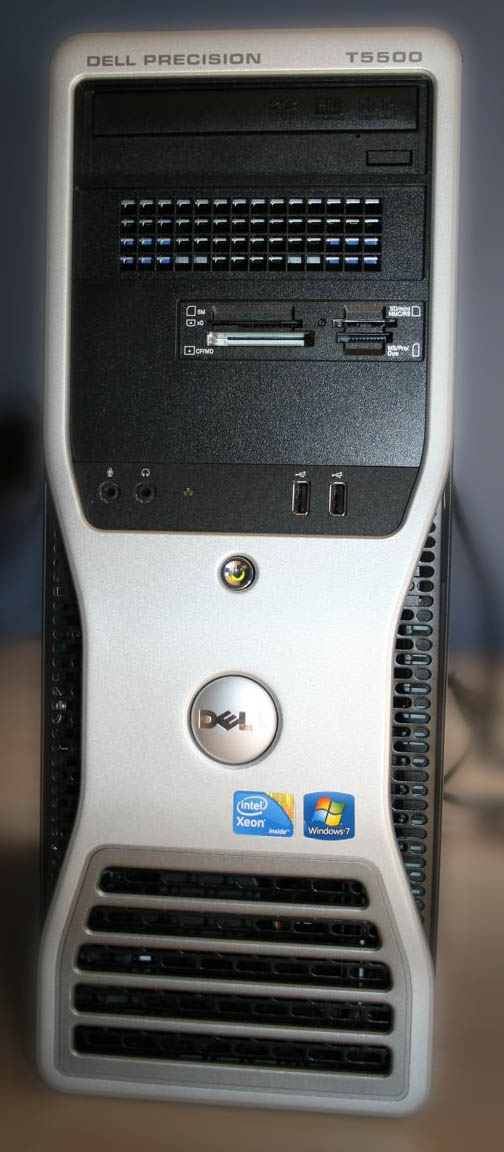
It looks plastic, but the chassis is actually sheet steel all the way around, and it feels pretty solid from the outside. Up front, we have Mic input, headset output, 2 USB ports (USB 2.0) along with the Media card slots and the DVD burner.

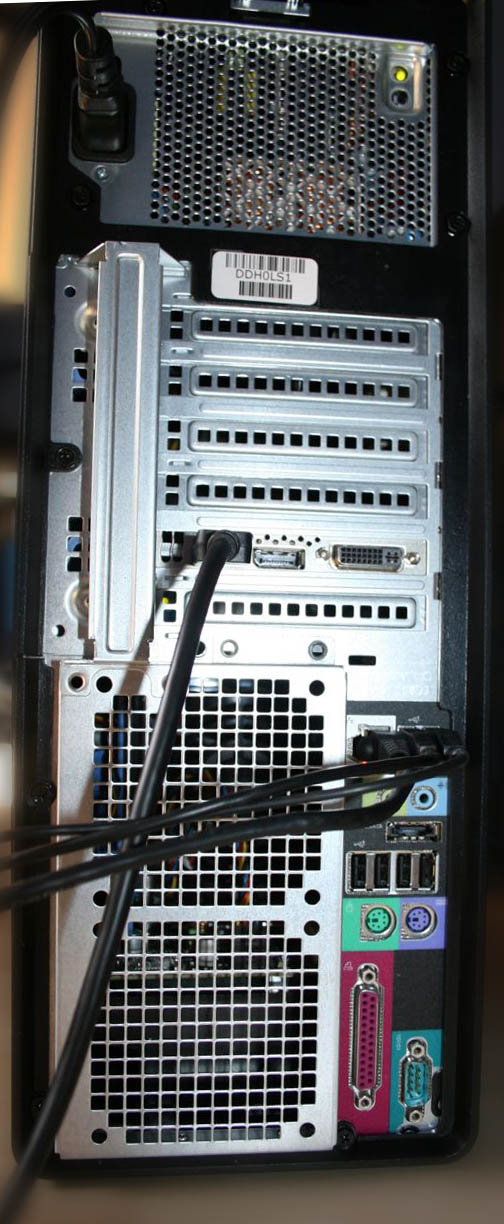
On the back are a slew connections from 4 USB Ports (USB 2.0), Ethernet, classic PC Mouse and Keyboard ports, classic Printer port and an eSATA port along with 6 PCI slots. You can see the single DVI and dual Display Ports on the nVidia Quadro 4000 card.

One thing that surprised me is the lack of USB 3.0 ports. I thought that would be standard on a workstation for media production and is one of the things that really sets the Windows workstations apart from the Mac Pro. But it isn’t and I didn’t notice that when the original specs were sent to me. The other thing I missed is the lack of Wireless internet connectivity standard, that has to be added. It was standard with our HP machine and it’s always in our Macs so I never even noticed that it wasn’t included on this machine. The wireless use really only comes into play in the initial setup anyway, but it would have been nice as a convenience. The single Ethernet port is an issue in our configuration at the office because we use one port to hardware to our office internet and a second port to connect to our SAN. I’ll be adding a Small Tree Ethernet card to the machine soon.

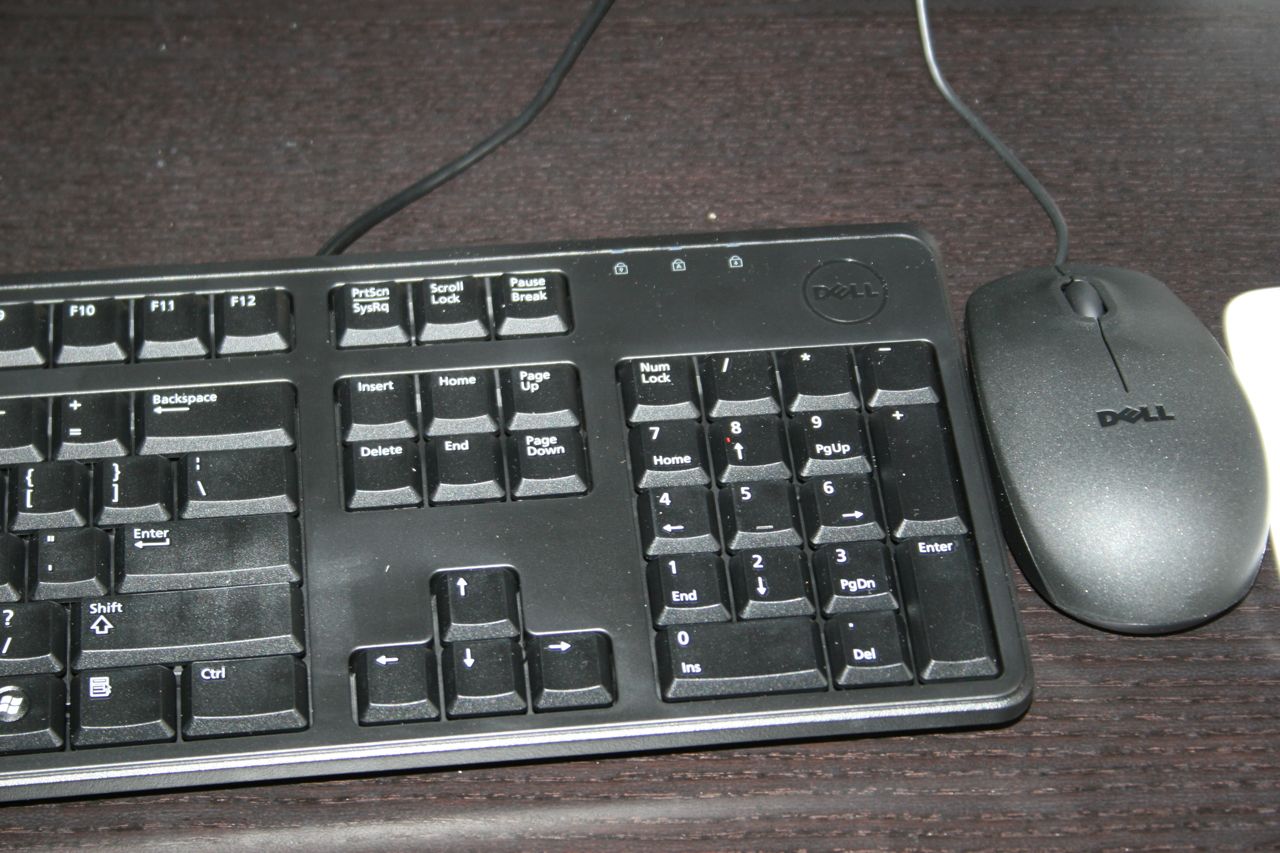
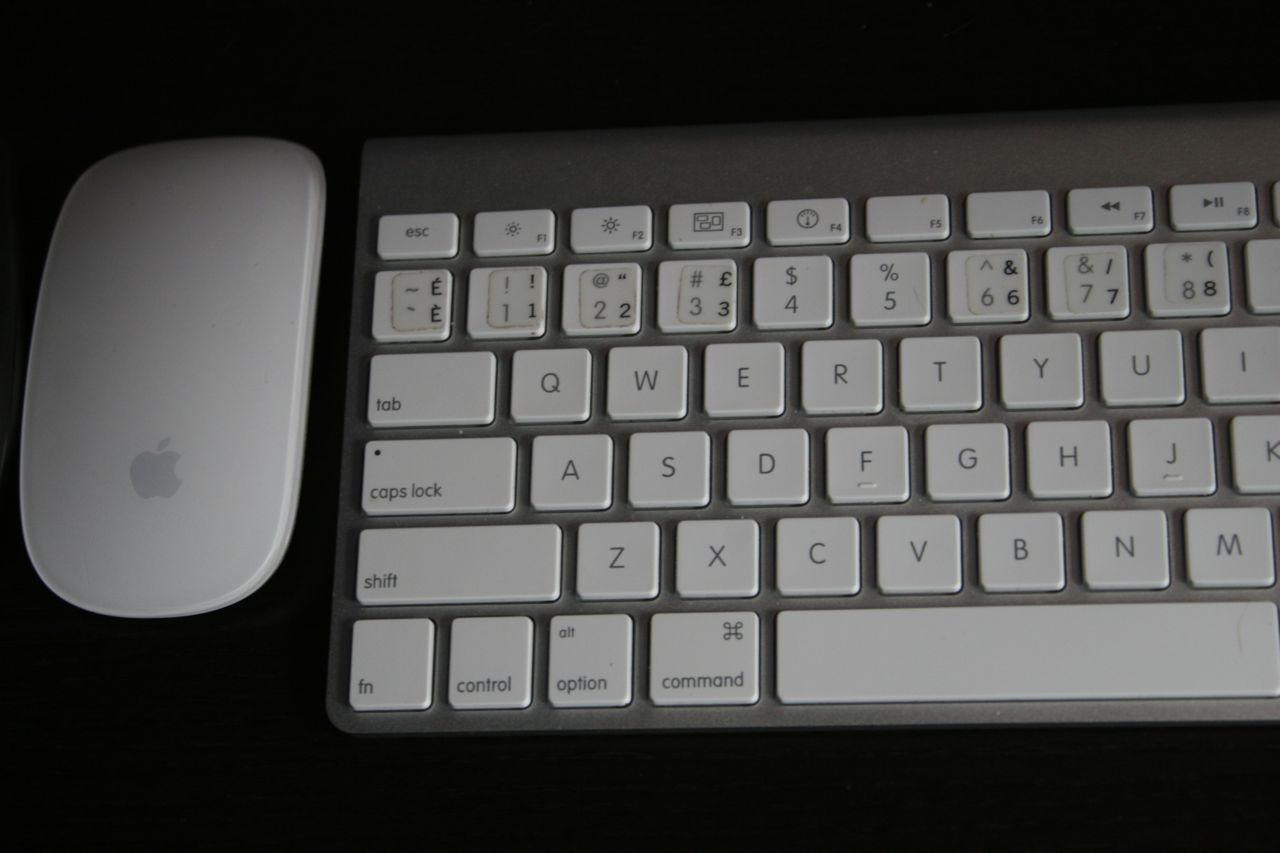
Keyboard and mouse are very UNimpressive. Honestly feels like the most cheap, plastic keyboard and mouse one could buy. The mouse isn’t all that big a deal because we use the Wacom Intuos Tablets throughout our shop and it won’t be used, but I can tell I’m going to replace the keyboard with something better. It feels like it’ll break within a few months of daily use and the clicking noise will drive me crazy.

The Mac keyboards have transitioned to metal keyboard with very quiet keys that feel better to the touch and are quiet in daily creative sessions. The acrylic top of the Apple mouse is very smooth to the touch with the metal bottom, it feels more substantial.

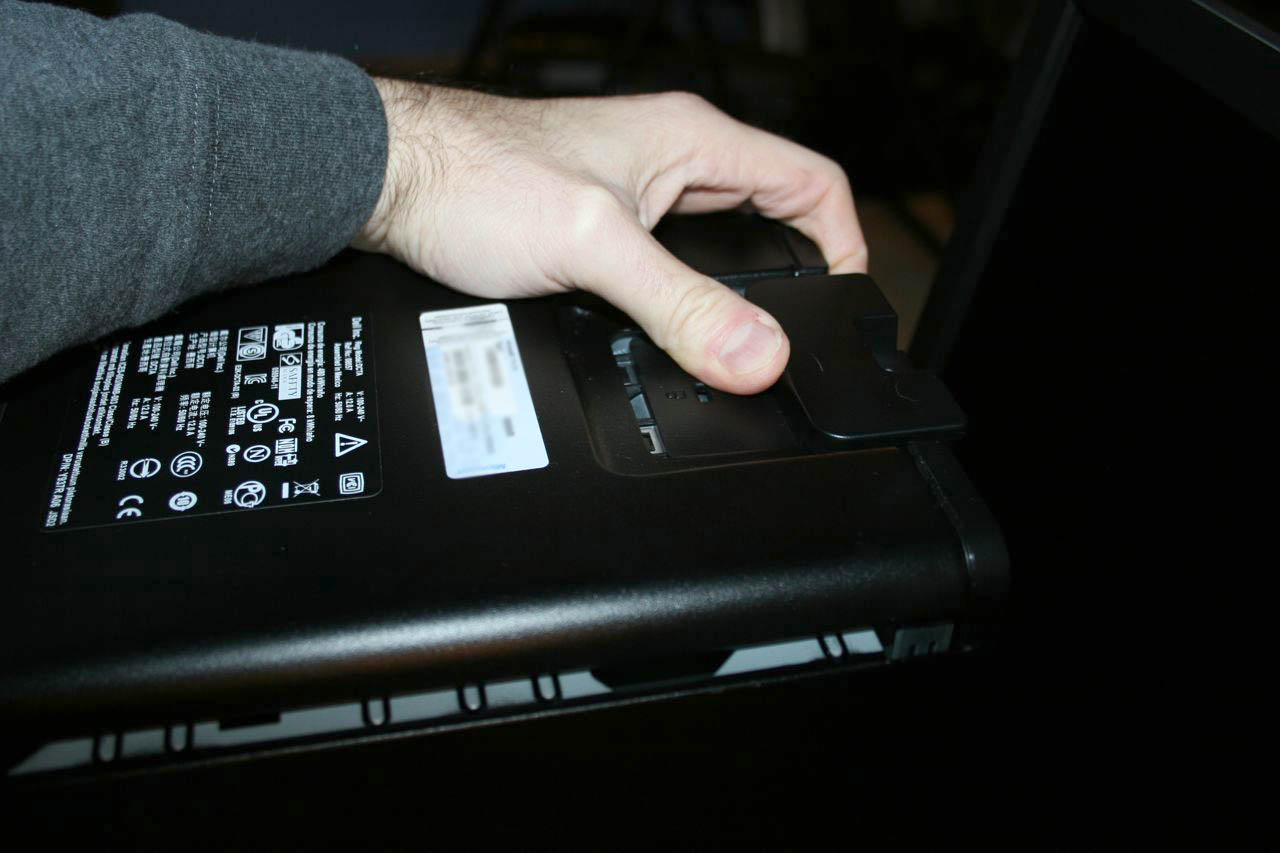
Access to the inside of the chassis is very easy, too easy in fact. I accidentally popped open the side twice when I picked it up. You slide back a tab on the top of the machine (pictured below) and the right side of the machine swings down and off. When picking up the machine, twice my hand pushed that tab back and the side fell off. Now that I know, I’m more careful.

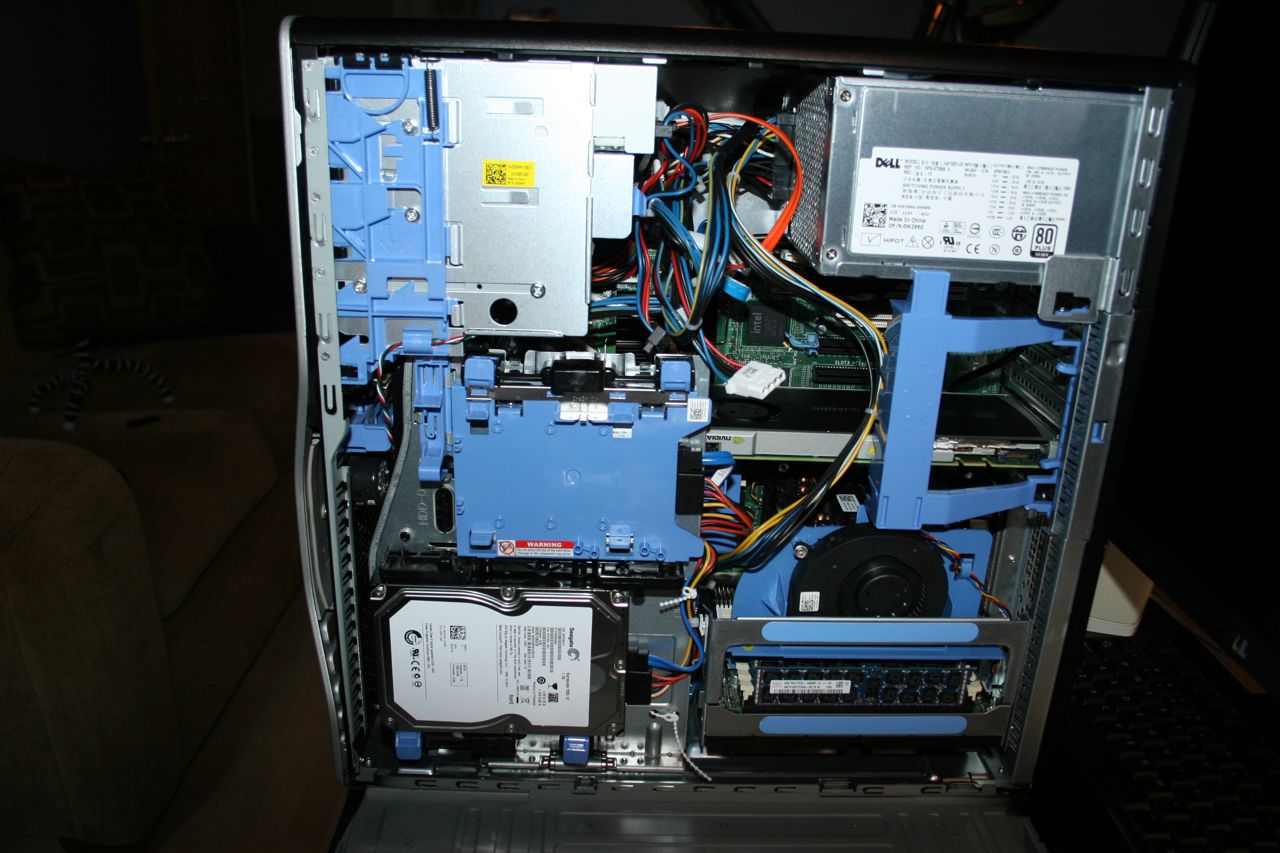
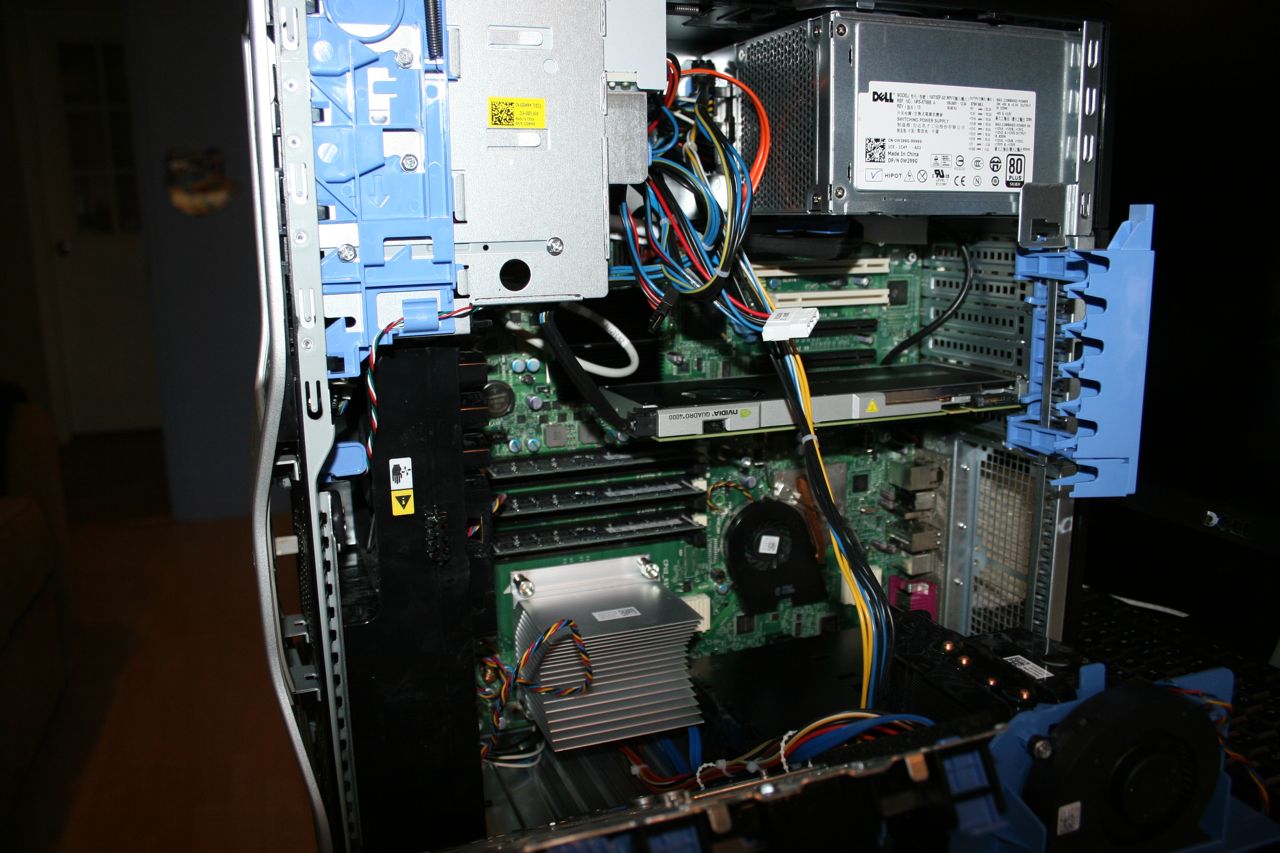
When you compare the inside of the Precision T5500 (pictured below) with the inside of a Mac Pro, it’s definitely much more convoluted and it was here that I really came to appreciate the design of the Mac Pro interior, which is almost as elegant in appearance as the outside. This definitely looks like it was designed by an engineer who would never have to open the box up. The Mac Pro is designed to be very easy to access with most everything tucked out of sight.

It’s kind of ugly, but definitely functional. All those blue plastic elements you see represent sections that can be moved or removed to access various areas inside the machine as you’ll see in the next photo.

PCI cover on the right swings out of the way to get to the PCI slots (it actually swings out even further than this.) The hard drive on the bottom left drops down out of the way to get to the RAM. Even the Dual Processor riser comes completely out of the machine to make for easier access to the RAM and PCI slots.

One more surprise is how flimsy the system feels when the side cover is off. Working with the inside of the machine generally requires laying the machine on its side and back up again. When I laid it down, I could feel the machine torque a little, that is it twisted a bit. The steel frame is not rigid because the metal is pretty thin. For those who have never used a Mac Pro, it’s made from a very rigid metal frame that has no give at all, with or without the side cover on. Grabbing at two corners of this machine, I could easily twist it around a bit when the cover was off. I’m sure it’s nothing to be really concerned about, it just surprised me because it felt so rigid with the cover on.

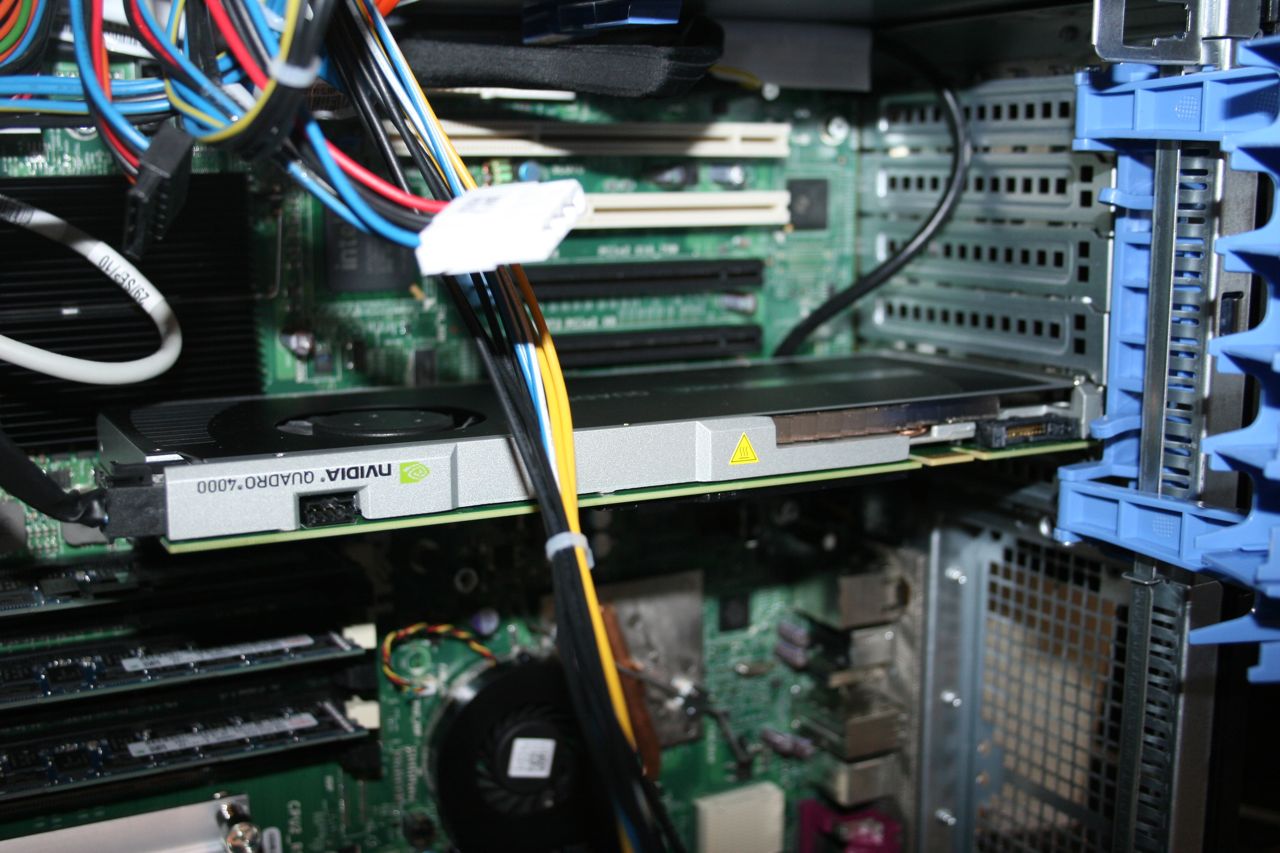
Speaking of the inside, I absolutely positively hate the design of the PCI card area. I kind of understand what they were going for, but this design creates quite the annoying workflow for the end user. As I said in the description, Dell included a Belkin 3 Port FW800 card, but it came separately so I had to install it.

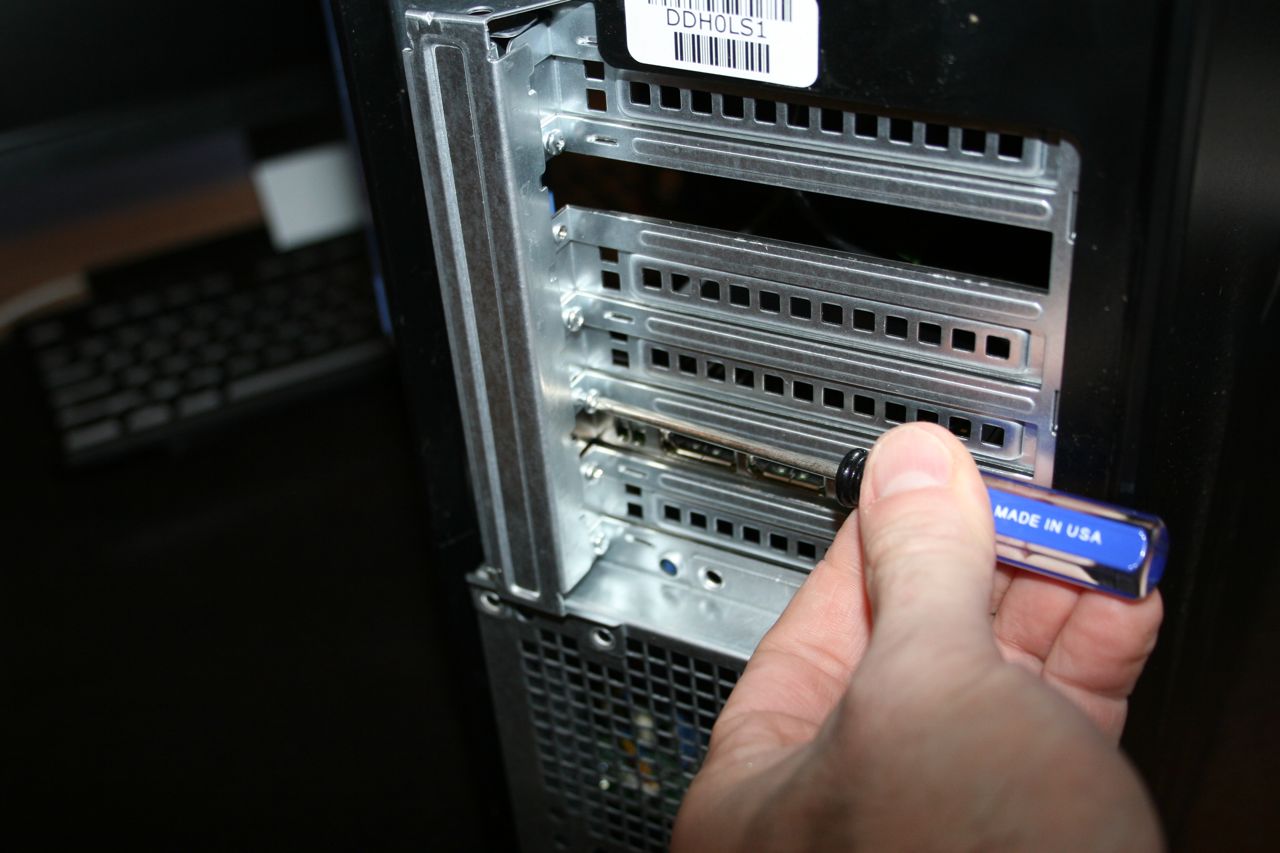
This involved…. go around to the back of the machine to unscrew the PCI slot cover. Yes, this is on the outside back of the machine. I’ve never seen the screws on the outside.

Lay the machine its side and remove the PCI Cover to access the PCI slots. Again, it swings back even further than this, I just didn’t get a picture of it. Install the card, close up the cover.

Then stand the machine up and go back around to the back of the machine and screw in the card.

I get what they’re doing, no screws to fall around inside the computer. But coming from a Mac Pro perspective, it’s annoying to have start outside the machine, go inside to set the card, then go back outside to secure the card. The no tools PCI locking system Apple has works so nicely that it kind of spoils me. Again, I get what Dell has done here and I guess this way is much better than screws falling inside the machine. Something to get used to.

And unfortunately, that’s pretty much where Part 2 of this journey is going to end. I had hoped to start testing out Premiere Pro CS 5.5 today, but during a 6 hour period, the software would not download from Adobe’s site. The Adobe Installation Assistant kept hanging at about 3/4 completed on the download even after repeated restarts with the computer. It’s not an internet issue because I downloaded the Mac version again on my iMac today and that worked in about 20 minutes. On the PC, it just would not work so all I could do was poke around with the machine and from what I could tell, the solid state boot drive made it quite snappy. Power On / Off were extremely fast. I did add the Stardock app to create a Mac OS styled dock to replace the Windows task bar. But that’s pretty much it.

From an appearance perspective, the Dell is not much to look at, but then there isn’t a single PC I’ve ever seen that is nice to look at like the Mac Pro. Of course the machine is destined to sit in our machine room, so who cares what it looks like on the outside so long as the performance is there to meet our needs. The next steps will be to try to get Adobe Premiere Pro downloaded and then install an AJA Kona LHi into the machine and see what happens when it gets into production. I’ll update with Part 3 as soon as we’re able to get this thing running with the software so we can start properly evaluating this thing.