
Yesterday the Creative Cow published my latest article about Apple’s New Final Cut Pro X which is part review and part discussion of where our company will go from here.
I was fortunate enough to be invited to do a podcast with the great Richard Harrington for our thoughts on the new Final Cut Pro X and how it might come into play in our facilities. Richard is the owner of a post production facility in Washington DC so we came at this software from a collaborative, client based, perspective.
The podcast runs about 90 minutes and I hope you find it a useful and entertain discussion. Enjoy!
Creative Cow - Why We Can’t Use Final Cut Pro X Today podcast
Reporter Bo Emerson took some time to visit our facility yesterday to prepare an article on our new series, “This American Land” for the Atlanta Journal-Constitution. We got pretty much the whole gang together except for Gary Strieker who was home in Colorado.
It was a real treat to meet Bo who is a long time reporter here in Atlanta. Super nice guy and we’re looking forward to see what he comes up with!
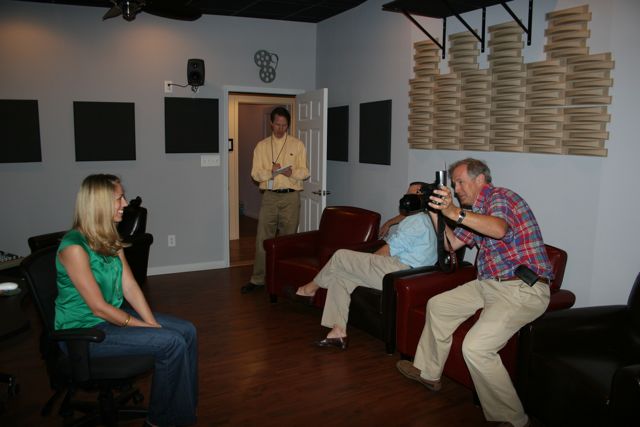 Host Caroline Raville strikes a pose. Bo Emerson takes notes, while Bruce relaxes in the back.
———-
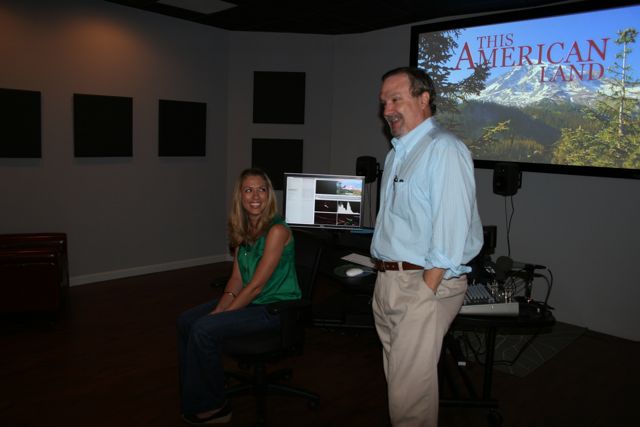 Caroline Raville and Bruce Burkhardt posing in the theater in front of the TAL logo up on the big screen.
————-
 You talkin’ to me……..
———————-
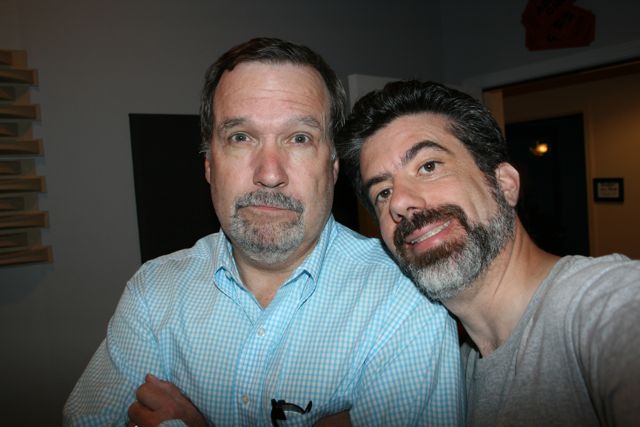 Bruce Burkhardt and BCM Principal Walter Biscardi, Jr. Walter and Bruce go back to the CNN Environment Unit back in 1993.
————-
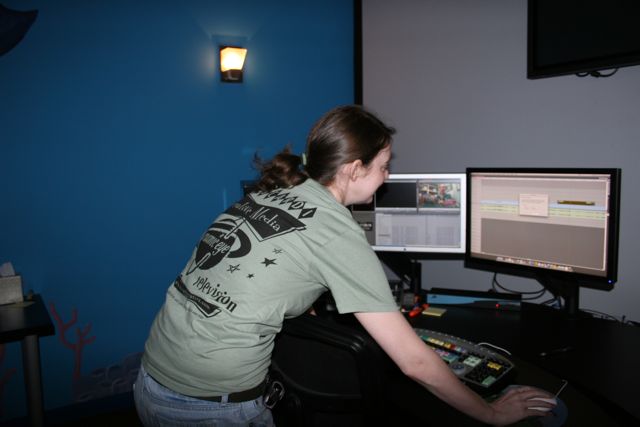 Adrienne hiding in the edit suite to get away from the cameras….
————-
 Bo Emerson chatting with Series Producer Marsha Walton
——————
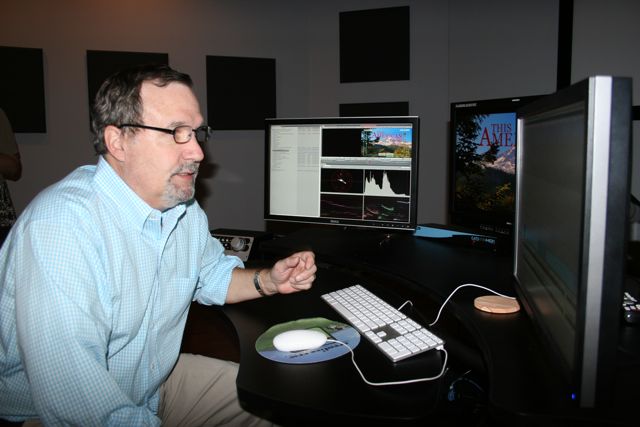 Back away from the controls Bruce, back away…….
———————-
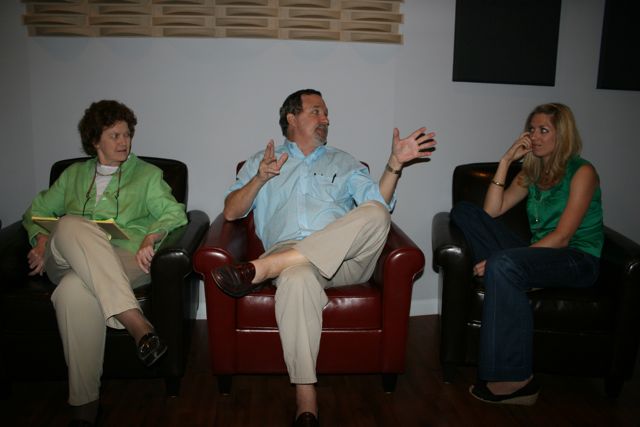 Bruce makes an excellent point to point to Caroline while Marsha looks on.

You’re looking at a photograph of Edit Suite 1 at our new facility, and it’s the one I use daily. The one question I get more than anything else is “What’s in your edit suite?” followed by “Why do you have that?” So I figured, let’s break it all down here step by step. Now the first thing everyone wants to talk about is the computer and hardware inside the computer. But when designing an edit suite, that’s just one component and definitely has zero to do with comfort. The computer is just a box and that box will make you more or less efficient depending on how you configure it. But the suite needs to be designed for comfort in addition to efficiency. I’ve designed 5 different facilities now and the basic design is usually the same. My goal when putting together a room is to ensure comfort for both the client and the editor. After all, I’m an editor too, so more than anything else, I want to make sure the editor has a very comfortable and efficient space to sit at when those 10 hour days stretch into 14, 20 hours or more. I have links at the bottom of this article for everything I show you here including the reseller from whom I purchased just about everything from.
First step, planning the layout.
____
____
____
 First off, I used software called Punch Home Suite to design my entire facility. Pretty inexpensive and the beauty of it is that it’s completely accurate to scale. Each suite is basically a rectangle 13′ deep and about 12′ across. (the drawing says 11′ 6″ but we changed that to 12′ during construction) This allows plenty of space for the edit console, the editor and a client or two to work comfortably. A small thing to note, the editor with console sits opposite the entry door. This allows a client to walk into the room and go straight to the client desk without having to walk around the edit console. Also, we installed full glass doors so we can look into the room without opening the door to see what’s going on. When we’re giving a tour of the facility, this allows us to show the room without having to disturb the edit session.
____
You might ask why I didn’t position the Edit Desk along the far wall where the client desk is. Where possible, I like to put the Edit Desk along the “wide wall” in a suite. This allows a client to comfortably pull up alongside the editor during a session when necessary. As an editor, I hate having to turn around to talk to the client, I like to have them up alongside so we’re just chatting comfortably. I know some editors like to relegate a Producer to the back of the room, but for me, it creates a more comfortable session when both sit side by side. With an 8′ wide edit console, it would have only allowed about 2 feet on either side of it. Also, from a practical standpoint, you don’t have to keep turning completely around to see who’s walking into the room.
____
One more note if you’re going to be building multiple suites, the biggest problem you face is noise transfer between the rooms. In our case, we built double walls between the suites with a 1″ air gap between the walls. The walls are fully insulated as well. So we essentially have 9″ of walls between each room. That air gap helps kill the flow of the sound waves between the rooms. Now here’s how the drawing translates to the actual room.
____
____
____
 Pretty much exactly as you see it on the drawing with no surprises. If you look at the lower left of the photo you can see how the cabling comes out of the wall and directly to the Anthro console so it’s not messy and distracting to the client. The rooms all have drop ceiling so if we need to run additional cabling in the future, it’ll be a piece of cake. There is insulation above the edit suites to again help with sound dampening between the rooms. The front wall where the plasma screen hangs is painted in 18% grey. The dog bed is entirely optional depending on your needs. Now let’s break down the room by component.
____
____
____
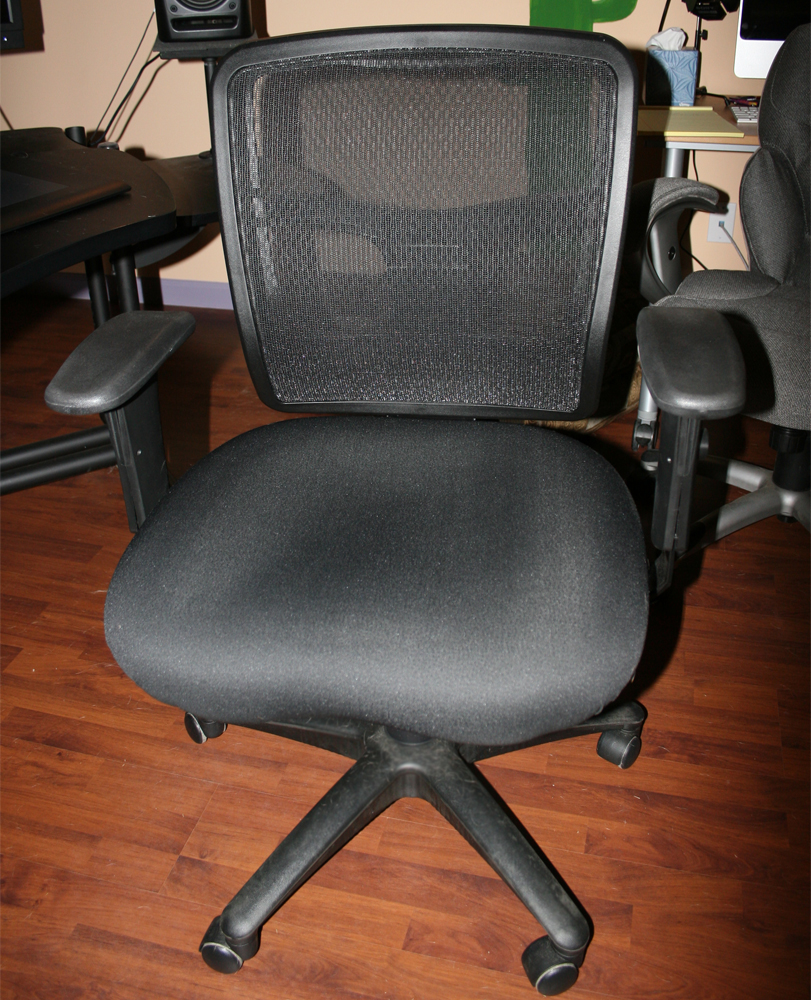 Yep, I’m starting with the chair. I’ll bet that’s the LAST place many of you put the chair. Think about it. You’re gonna be sitting in this thing for hours on end. Don’t you want to be comfortable? And you don’t need to spend $500 - $1,000 to get a high quality chair. How about a $169 Pro-Line II Chair from Costco. Shipped directly to your door. Yep, these chairs are so comfortable I ordered them for every suite. So while you might not make the chair your first priority, DO make it a priority.
____
____
____
 Absolutely positively vital is your edit console. I’ve seen and used all manner of consoles, edit desks from build it myself to the classic Winsted units and I have to say, I’ve never found anything so well laid out and versatile as the Anthro Fit Console system. First off, they are completely rugged. Two of our Anthros are going on three years old and they still look like they just came out of the box. Now these consoles are not the cheapest desks in the world, but I find they are worth every penny. Look at the amount of room that’s across the main desk to hold monitors and gear. They are incredibly strong and can hold a lot of weight. They keyboard shelf alone can hold 40 pounds, so more than enough strength for, say a Davinci Resolve panel. And actually calling it a keyboard shelf is a misnomer, look at just how large that shelf really is. I have a standard keyboard on the left and a medium WACOM tablet on the right and there’s still plenty of room for notes and whatnot. The one thing I do change on the keyboard shelf is the position of the clutch that locks the shelf into position. Where the instructions tell you to put it, the arm of your chair will constantly run into it. So I move it much further to the right. This keyboard shelf has a huge range of motion both down and up for the ultimate in comfort of how you like the sit. My favorite feature of the desk is that allows for the editor to stand if they wish as seen in the next photo.
____
____
____
 Here you can see the keyboard shelf lifted up to its upper position and I’ve got the monitors tilted so they are in a more comfortable position for viewing while standing. As noted in a recent article on the Pro Video Coalition website, prolonged sitting could be just as dangerous to you as smoking. Sitting for hours and hours, even in those wonderful chairs I showed you above, is not good for anyone. So I tend to stand for about half the day, usually after lunch, as I just find it makes me feel better to stand for a while. With the way the keyboard shelf sits, it’s just as comfortable standing as it is sitting. The main desk measures 6 feet across and then I added the two outboard shelves you see on either side bringing the entire width to 8 feet. I like adding the outboard shelves for a little more room for my scripts, notebooks and even my laptop / iPad. When you look at the Anthro site you’ll see they have something like 40 accessories for this unit so you can literally configure this to suit any need. A big plus for these consoles are the casters on the bottom allowing us to easily move the desk around as needed, which is particularly useful for cleaning the floor. One other accessory I add to all of my consoles are the Standard Swing Arms for the monitors.
____
____
____
 Anthro has two different sets of Swing Arms, the Standard and the Heavy Duty. The difference is how much weight the arm can support. In our case, the Standard is more than strong enough to hold our Dell and even the Flanders Scientific monitors. You can see how they have plenty of room to swing left and right and the monitors tilt up and down independently of the arms. This gives each editor the ultimate freedom to position the monitors as they like them, not just limited to a set height and tilt by a monitor base. And of course, the arms allow the monitors to raise up and tilt when we’re standing. These arms are about $250 each so they add $750 to the cost of each console, but I purchase them because they contribute to the comfort of the editor. Put the monitors in a position that’s comfortable for you and not just a set location. In particular older editors will move the monitors further away while younger editors keep the monitors closer. It’s that whole “after age 40 your eyes start to go” thing. Also notice how I’m able to position the audio board underneath the foreground monitor. By lifting the monitors off the console, it gives us even more room to put additional gear. Do you NEED these arms? No, but for my money, I’m after comfort and versatility for 10+ hour days, especially when I want to stand up and these arms put the monitors in perfect position for that. Since we’re on the topic of monitors, let’s look at those next.
____
____
____
 We run a standard three monitor configuration. Dual Computer monitors and a broadcast reference monitor. The computer monitors on the left are the Dell UltraSharp U2410 24″ model. They are very sharp and as close to the Apple Cinema Displays as I’ve seen. I had originally planned to start transitioning the entire facility over to the Apple Cinema Displays, but the stupid Apple Mini Display cable caused all sorts of issues for us which I’ll address shortly. So I went with these monitors and they are quite reasonably priced for the quality. I tend to run monitors for three years and then they are replaced and so far, the Dells we have owned over the past few years have held up extremely well. A nice bonus to these monitors are the four USB ports on board. Gives you extra room to plug in a flash drive, backup drive, control surfaces, etc… Now I would like to switch over to the newer LED monitors as they run with less heat and electricity but the problem I have run into is many do not support the VESA mounts required to put the monitors on the Anthro Swing Arms. The monitors are so thin, there’s no room to run the screws to hold the VESA mounts in place. I’m hoping some of these monitor manufacturers will start adding some outboard plates or something like that so we can mount the screens on the swing arms. I’m actually starting to write to Dell, HP and Samsung to find out if they are going to put some sort of provision to allow their monitors to be mounted on VESA plates.
____
I know there are those out there who run the Dell or HP DreamColor monitors as a “broadcast reference” monitor but I don’t buy into that. These monitors were designed as computer displays and as such optimized for a progressive graphical display. The color setups are not fully accurate for broadcast. Yes you can get calibration software / hardware that can get the monitors close, but for me, I’d rather use the monitors as they were designed and not force them into being pretty good at something else. For accurate video monitoring I believe in purchasing a true reference monitor and in our case we run a lineup of Flanders Scientific models.
____
____
____
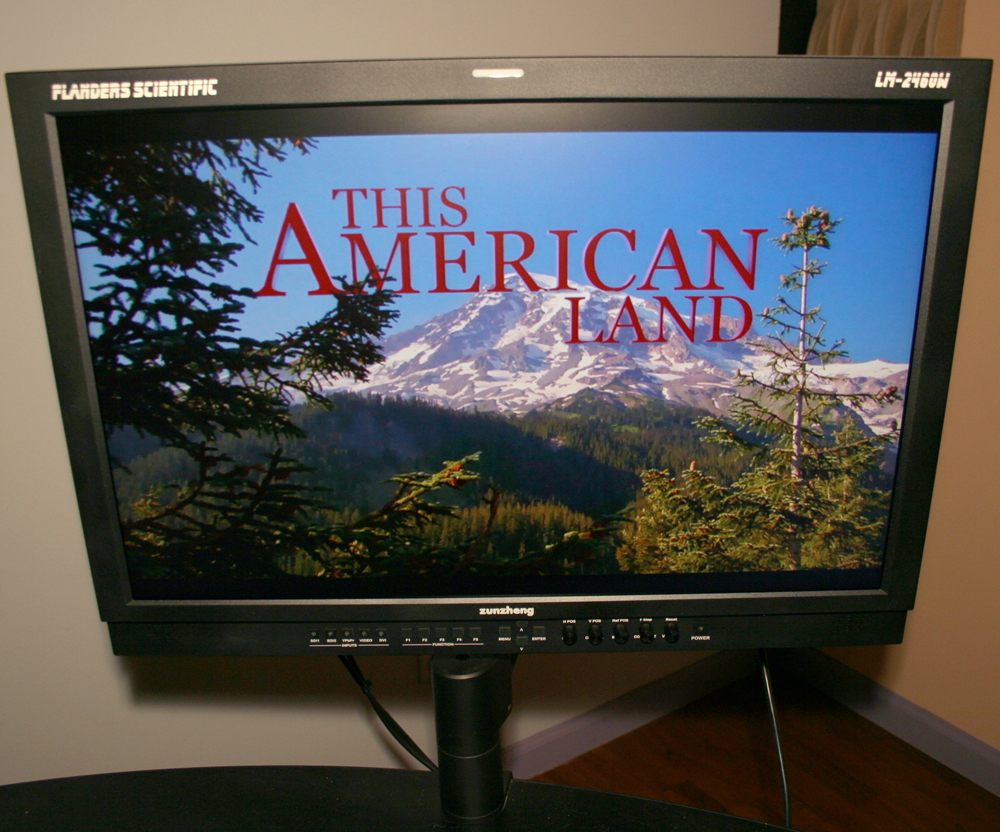 This is the FSI LM-2460W model that we use in two of our suites. We also run the 1760W, the 1770W and the new 2461W models. Each model comes standard with the same inputs. Two SDI inputs, Component, Composite, and DVI with easy push button controls on the front to switch between them. And all of those inputs except the DVI have loop through so you can send a signal to the FSI monitor and then loop that signal out to another display such as a Plasma screen. There are 5 menu presets so you can quickly bring up video scopes, safe title markers and even custom markers. In fact there are something 30 or more features you can bring up with the various menus that make these units incredible versatile for work. Most importantly, they accurately display colors for both video and film. Most importantly for me, they accurately display interlaced video which is extremely important when converting Standard Definition video to High Definition or vice versa. Why? In most cases you’ll be reversing the interlacing which could lead to horrendous video quality with very obvious stuttering or bad interlacing issues. In fact, when converting Standard Definition to progressive HD, there can be issues with the conversion which you won’t see if you don’t display the image correctly.
 ___
I’ve heard the argument that FSI just uses the same front panel as many of the computer screen manufacturers so obviously it’s just the same screen so why spend more for the FSI? There are only 2 or 3 actual panel manufacturers so many of the monitors you buy, regardless of the nameplate on the frame, do have the exact same panel on the front. So what separates the various models you see? The construction of the frame, the amount of inputs (and outputs) and the electronics behind the panel. Especially the electronics, this is what separates the quality of the image you see on the panel along with the accuracy of that image for various applications. A Flanders Scientific monitor is set up to display video accurately along with very accurate color for the application it’s being used for. For my money and our work, we need a very accurate monitor so we can give our clients the best looking product we can possibly produce AND meet very stringent broadcast standards. I have looked at other broadcast monitors and have not seen anything in this price range that comes close to the quality of these monitors. To get “better quality” you need to step up to around the $10,000 range. But honestly when you look at these monitors side by side with just your eyes, you’re hard pressed to see a difference. At least something that makes you say, “I HAVE to have that much more expensive monitor.” The FSIs are priced reasonably enough that I can afford to put one in every single edit suite and that’s important because that means each and every edit suite can finish a project. I don’t need to send the project into the “finishing room” which has the best monitor in the shop. ALL of our suites are finishing suites which makes us much more efficient. We have one more monitor in each of our suites that hangs on the wall.
____
____
____

This is the Panasonic TH-42PH11UK 42″ Plasma display and we run a variation of this model in each of our edit suites. We have the 9, 10 and 11UK versions of this model as we’ve purchased multiple units through the years. Now this is the professional version of the same Panasonic Viera model you can purchase in any electronics store. The display itself is identical between the consumer and pro models. Depending on the week, either the consumer or pro model will be cheaper, though usually the pro model is actually cheaper. Why? No television tuner included in the pro model. Generally pro models are not used as a regular television so there’s no tuner put inside. But the real reason I like the pro model is the modular input design. There are three slots for inputs on the bottom of the monitor that can be changed out depending on what you need. For instance when I started using my first plasma display, HDMI was not out yet. But when I needed an HDMI input a few years later, I was able to add it to the display buy purchasing a new input module.
____
We use these monitors for two reasons. One obviously for the client to view their projects on a larger monitor. This is especially useful in the rooms that use the 17″ reference monitors. It’s always nice to be able to see your project up on the “big screen.” Although I will say we were all surprised at how small these monitors look hanging on a 13′ wall with 9′ ceilings. If I were to do it again, I would go with 50″ displays in our rooms. Second, when a project is completely done, we watch it down on the plasma screens. The larger monitor just makes it easier to spot any mistakes or issues. Typos, glitches, flash frames, whatever, just all seem to jump out at you when you’re looking at a 42 to 65″ display that we sometimes just miss for whatever reason on the 17 and 24″ displays. I much prefer plasma to LCD displays for the client monitor in our suite because of the excellent representation of the black levels in the image and the incredible field of vision. You can sit almost 180 degrees to the side of this screen and still see the image and the correct colors. With an LCD as you move off to the side of the monitor, the image tends to go milky. Since we could have 2 to 5 people in a suite watching the final rundown, I want that image to look the same to everyone at the same time. Now let’s look at audio.
____
____
____
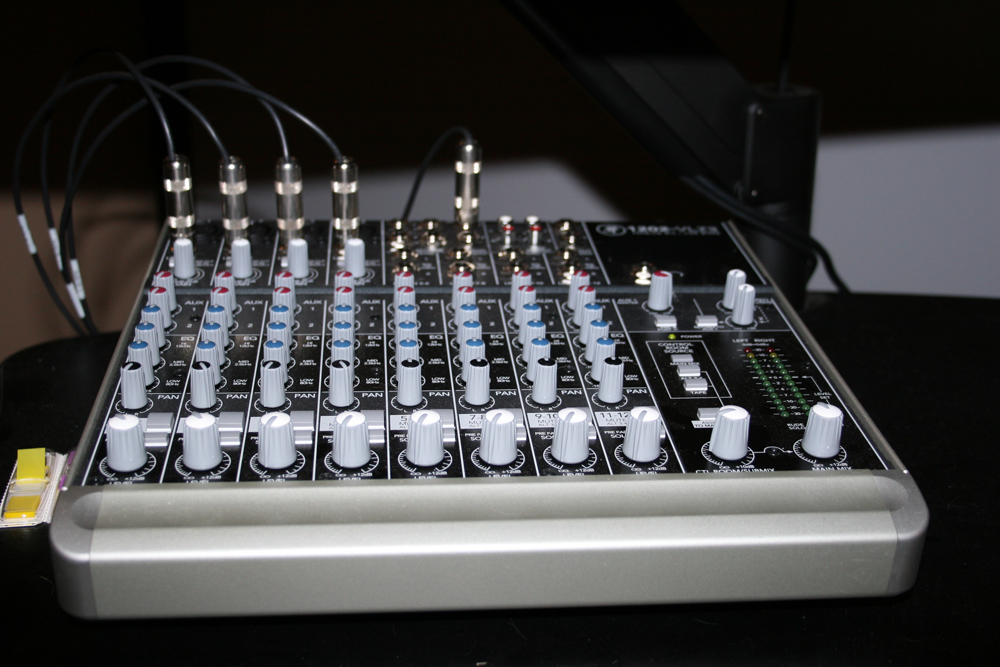
The classic Mackie 1202 audio mixer. It would not surprise me if this is the best selling audio mixer ever. Seems like every edit suite has one. But with todays digital I/O’s and digital formats, why the heck do we still use them? Well they do still give us flexibility in a shop like ours. We do have a machine room with 7 edit systems, 6 VTRs, DVD and BluRay players, and ProTools playback. So those four audio inputs you see across channels 1 through 4 are full patchable. In normal mode, Channels 1 and 2 are fed by our Kona boards so we can listen to our edits. Channels 3 and 4 are open for any other inputs such as from a VTR. Like when mastering to tape, very often we will watch and listen to the VTR instead of the playback of the edit system. This will tell us immediately if there’s an issue with the signal going to tape. And if we hear an anomaly, we can instantly bring up the edit system output to see if the anomaly is on the output or something internal to the VTR. In addition, if we hear something wrong in one of our edit suites, say crackling in the audio, we can patch that system’s output to another room and listen to see if we hear the same audio issue. Finally, these boards have dual AUX outputs which is incredibly useful with our new VO booth. We can connect a microphone to the audio board so we can talk back to the talent in the VO booth and we can also feed their own audio back into the headset. This means we can record a VO in any edit suite and not just a dedicated audio suite. So having the mixing board with at least four inputs is very useful in our situation, not to mention we use the board as a volume control for our audio monitors.
____
____
____
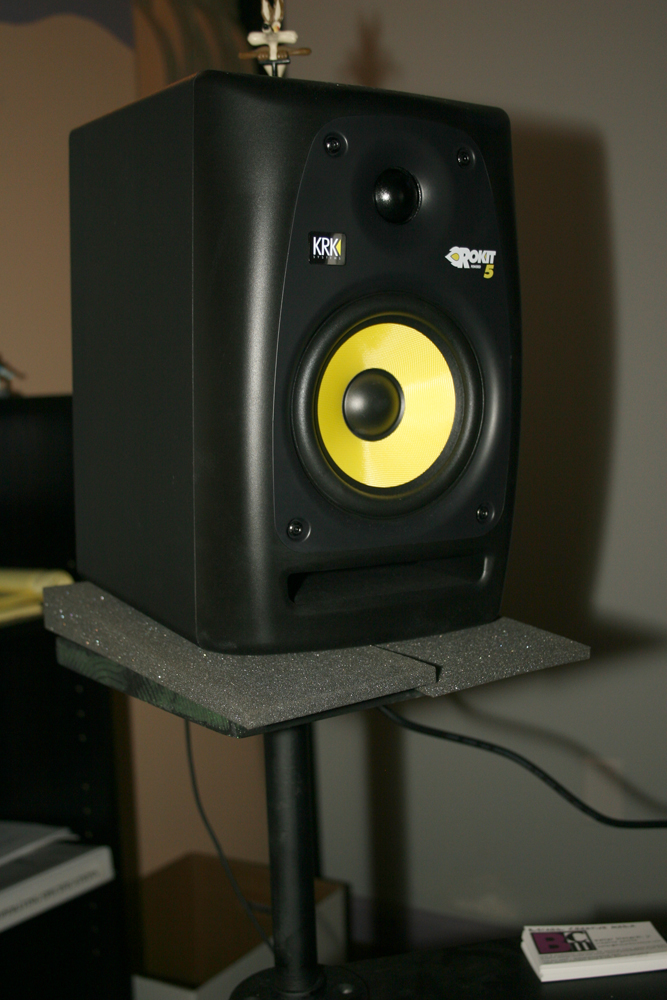 In all our suites we run the KRK Rokit 5 self-powered audio monitors. Excellent flat quality with a little touch of extra bass that you can really trust to mix your projects on. If your mix sounds good on these, it will sound great to the client as well when you deliver the project. KRK makes a whole line of these Rokit models and they all sound great, I prefer the 5 model because they’re not too big and perform really well in edit suites and you can’t beat the price, usually less than $100 each and sometimes you can get them $150 or less for a pair. If you have a large room, you’ll want to augment these with another set of monitors as these are really near field, which means they sound best close up. To fill a large room you’ll want something larger or something designed for a larger room. You’ll also notice if you go back to the original photos in this article, the monitors are angled in towards the editor. You want the monitors at ear level and pointed towards your ears for the best monitoring set up. When they are set correctly, the sound should appear to come from the center of your console. We feed these with 1/4″ jacks from the Mackie audio boards though they also have XLR and RCA inputs.
____
Those pads you see underneath the monitor are Auralex bass pads to keep the monitor from rattling on the stands, especially during heavy bass playback. Now those stands are nothing fancy. Some 1/2″ galvanized pipe from Home Depot with flanges, 8″ pine shelving cut to size, and a can of black spray paint. I believe the pipe itself is 8″ long so the monitors are raised up off the console about 9″ including the shelf. Since the galvanized piping has screw threads on both ends, I can easily swivel the monitors if I want to point them more out into the room for client review. Now back to one last tool in the edit suite.
____
____
____
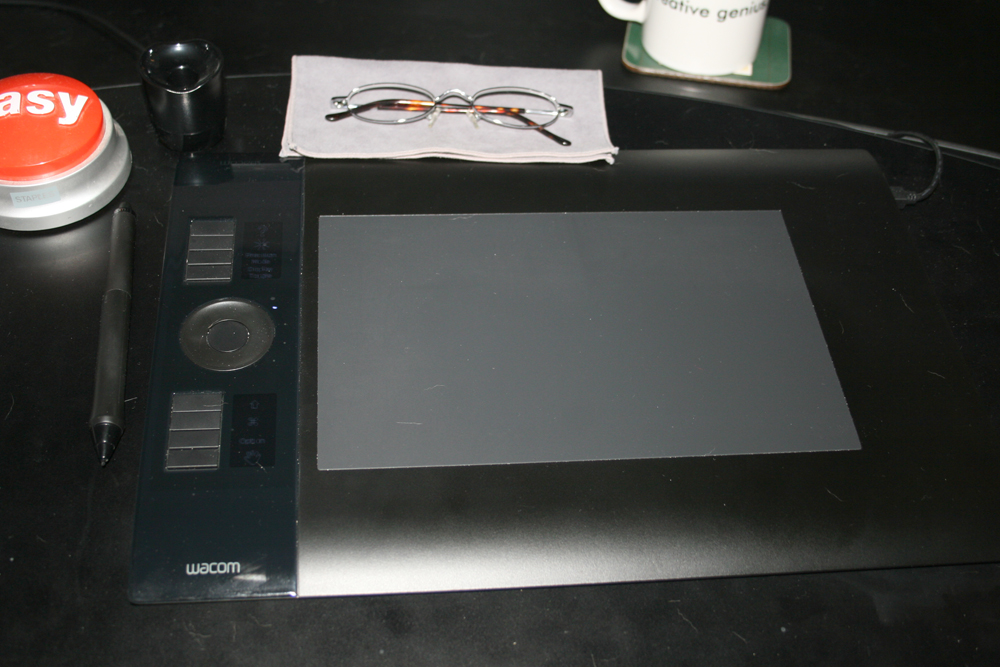 Since 1996 I have been using WACOM tablets pretty much exclusively. It completely replaces the mouse and in my opinion makes an editor much more efficient than using a keyboard / mouse or keyboard / trackball combination. This unit is the Intuos 4 Medium size model. Here’s one big thing the tablets do, they completely prevent carpel tunnel syndrome. You don’t have the repetitive finger click that causes the carpel tunnel when using a mouse over long periods of time. I actually find my wrist getting fatigued after a very short time when using a mouse. In fact, a Producer thanked me because he already has carpel tunnel so bad he wears one of those braces to keep the hand steady, but he can slip the pen into the brace and keep working. It takes about 2 or 3 days to really get used to using a tablet, but once you get the hang of it, I guarantee, you will never use anything else. When editing in an NLE, I use it like a straight mouse but it’s much more precise. When working in applications like Photoshop, After Effects and Apple Color, I can work the controls, draw shapes, erase elements with complete ease. The eraser and side buttons are fully programmable so you can have keystrokes and button clicks at the ready. WACOM makes multiple models of tablets and I find the Intuos line is the most precise and lasts the longest in day to day use for editing. Generally they last about two years before we replace them.
____
____
____
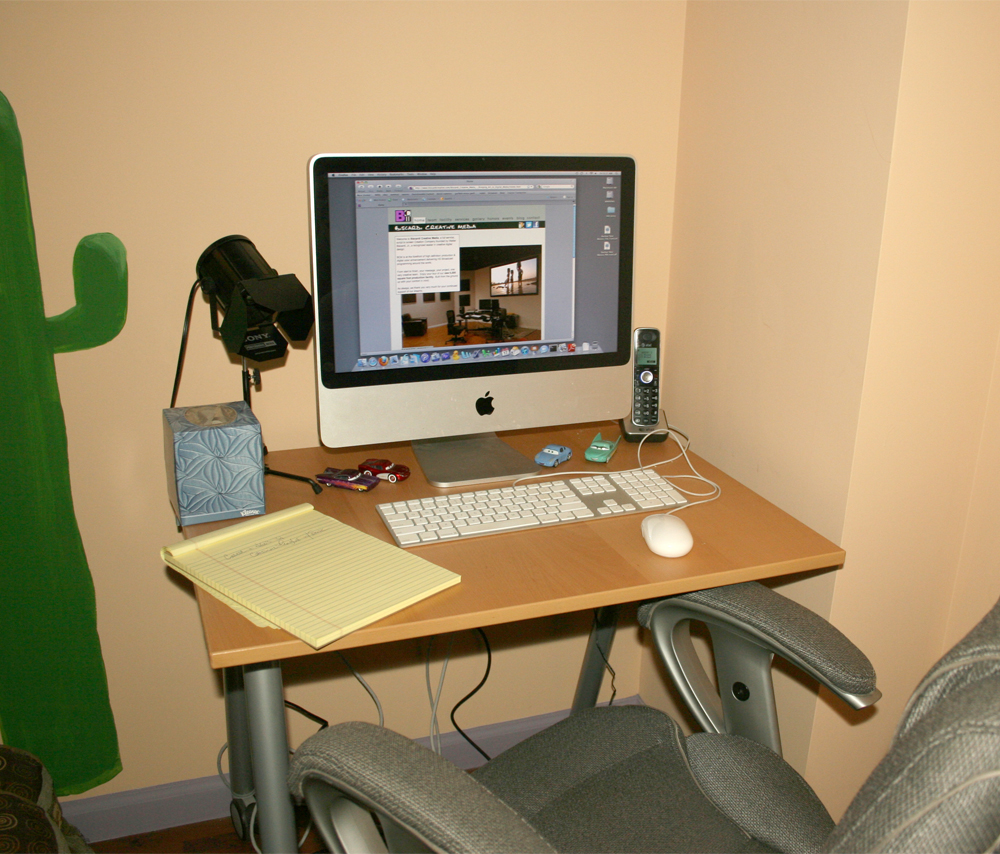 We include a Client Computer in all of our edit suites as well. Now regardless of whether you need a “client computer” or not, I highly recommend having a second computer other than your edit workstation to check emails, surf the internet, watch YouTube videos, Tweet, etc…. Why? Because your edit workstation is making you money. Let it work. Let it render, let it edit, let it lay to tape or whatever it’s doing uninterrupted. Use a laptop, iMac, iPad or whatever to do all that other “stuff” and just keep your edit workstation clean to work. In our case, we have basic iMacs in all the rooms and they serve multiple purposes. First and foremost, when a client comes in the room, they have a computer to use. Most clients have a laptop with them, but if they don’t, they’re welcome to use these. The iMacs are connected to our SAN so the clients can review raw materials from these machines without the need for the editor to sit and go through everything with them. In addition, the editors use these computers to upload / download materials to / from our FTP servers directly to / from our SAN. And if we get towards the end of the day but still need to upload some large files, we’ll pull the files directly onto the iMacs so we can shut down the edit workstations and SAN but still get the file uploaded. The desk came from IKEA. The director light was a spiffy gift from the fine folks at TapeOnline.com
____
____
____
So there’s a look at our main edit suite. How many of you noticed that something is missing in the original photo? Do you see it? Well what you don’t see is the Edit Workstation and the Media Array. When I first started out I always had them in the room with me. But as the media arrays got larger, and the computers got more powerful, they got louder. To the point where it really started to get a little distracting in the edit suite. And sometimes it’s tough when you hear a hiss or a strange sound if it’s in the audio mix or if it’s coming from the fans on your computer and arrays. So for the past three years now we’ve run the computers remotely.
____
____
____
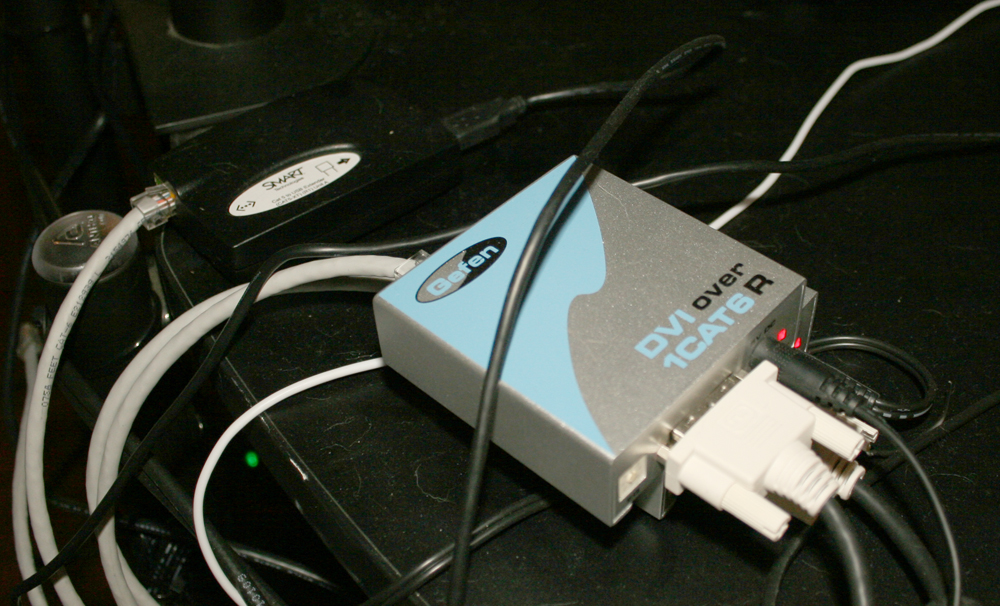 We use two different products from Gefen because quite honestly, they can be very flaky to set up. If one unit doesn’t work, Gefen’s answer is usually to send us the other. Here you see the DVI Over Cat6 unit. We run Cat 6 Ethernet cable between the machine room and our edit suite. Two cables for the two monitors and two cables for USB connections like the keyboard / mouse / tablet, etc… The Cat 6 connects to this receiver (that’s the grey cable near the Gefen logo) and then the monitor DVI connection also connects to here. There are two receivers here, one for each of the computer monitors. In the Machine room there are two identical units that are Senders which connect to the DVI connections on the Mac Pro and then the Cat 6 cable runs directly to the Receiver. We can put the computers 100 feet away from the monitors and keyboard using these units.
____
____
____
___
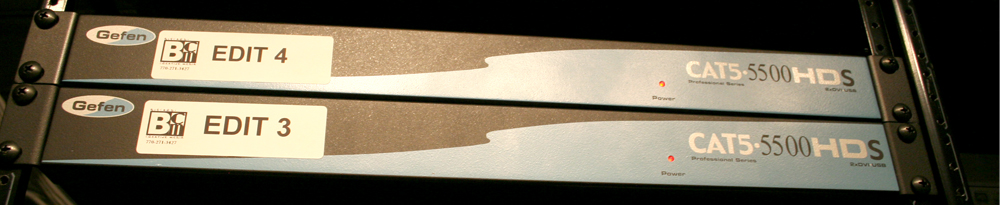
This is the other Gefen unit we use, the 5500HD. This can send two DVI and four USB signals via the single box instead of having to use a unit for each connection. We prefer this unit because it’s an “all in one” type of setup. Here you see two of the Send units mounted in the machine room and an identical Receive unit sits in the edit suites. As I said, they can be flaky at times but unfortunately they are the only choice we have right now. I’ve been trying to convince a few other companies to come out with an alternative and am hopeful one of them will eventually.
____
Oh and remember I said I would address the “Stupid Apple Mini Display” issue. Well the Mini Display and these Cat 5/6 Extenders simply do not play nice together. When we tried running the Apple 24″ Cinema Display with the Cat 5/6 extenders, sometimes the monitor would work, other times it wouldn’t start up at all and other times it would simply go blank for no particular reason during a session. Could take anywhere from seconds to over 30 minutes to get the monitor working again. Same with the mini display port on some of the newer ATI cards in the new Mac Pros. Our ProTools rig has one of those and every time we start the machine, that connection is always snow. We have to disconnect and reconnect the mini display plug at the Mac Pro very quickly to get the signal to work. So there you go, Apple Mini Display and the current Cat 5/6 Extenders don’t play well together. Sigh…..
____
____
____
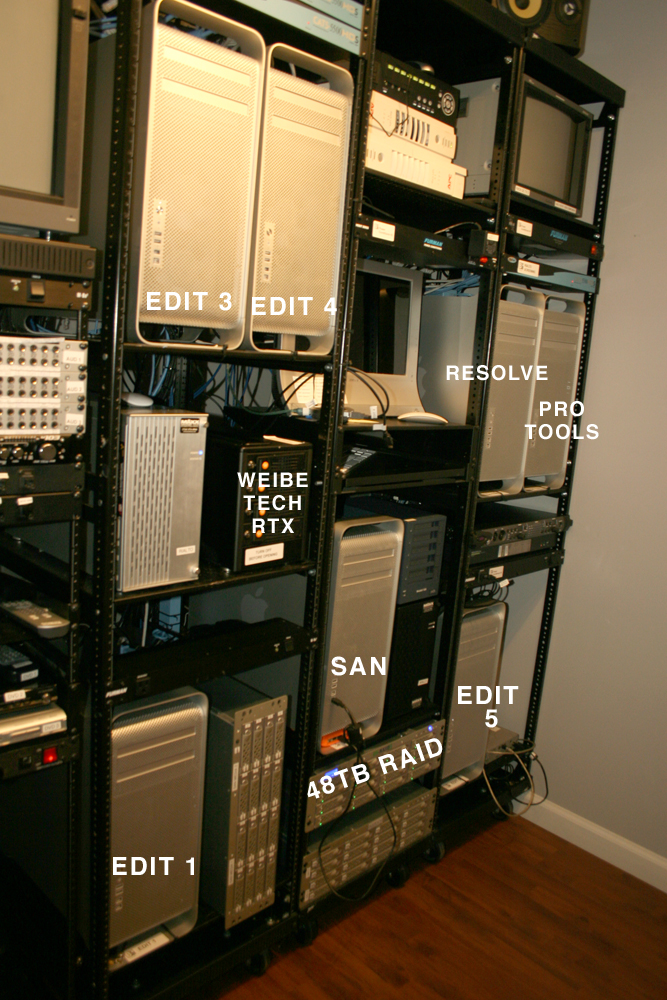 Here’s how it all comes together in the Machine Room. All the edit workstations together, nice and neat which makes it easy to maintain all of them. So all that noise from all the machines is kept in one place while the edit suites stay really nice and quiet. Again, it’s a real comfort thing to the client and the editor alike. They are working in a quiet room without all that white noise making for a more pleasant working environment. Another big advantage? We keep the machine room cold, but we don’t have to chill down each individual edit suite to keep the equipment cool. Again, more comfort for everyone. Yes, I have gotten a few comments along the lines of “well if the computer is in the machine room, then I have to get up to go put in a DVD or attach a flash drive or whatever.” Yep, that’s true. The editors who work with us, like the quiet and comfort of the edit suites, they don’t seem to have a problem walking a few steps down the hall to the computers when necessary. And I’ve never met an editor who had difficulty walking to the break room to get a cup of coffee or tea, so if you can do that, you can certainly walk to the machine room.
____
Now even if you have no need for a machine room, if you can get the edit workstation out of your editing room, do it. You may not even need extenders like we have. If you can put the computer 35 feet or closer to your keyboard / monitors you can actually buy direct connect cables that will work with those distances. USB Extension Cables and 35 foot heavy duty DVI cables do work for those distances. If you’re working at home for example, put the computer out in the hall or punch a small hole in the wall between your main room and the next room and put the computer in there. Just ensure the computer has plenty of air flow and is kept relatively cool. We run our machine room at 71 degrees which is warmer than many other facilities, but I don’t see a need to keep the room around 65 or lower. The equipment stays plenty cool at that temp.
____
So there you go the anatomy of an Edit Suite with some of the hows and whys of what we do to set up our rooms. I hope some of this is helpful to you as you set up your suites, your rooms, you basement workshops or wherever you may find yourself editing video content. Some folks have asked me for particular configurations of the software and hardware that we run. Here’s more on that.
____
Main Edit Workstations:
Fastest Mac Pro available at the time of purchase
16 to 24GB of RAM
Top of the line ATI Graphics Card (for fastest Apple Color operation)
Two additional Hard Drives internal. One is an AUX drive where we store graphics and other files for various projects. The second is the “new OS drive” where we do clean installs of new OS versions.
Apple Final Cut Studio software package
Adobe CS5 Production Premium software package
AJA Kona video card. Kona 3, 3G and LHi all in use.
Telestream Episode Pro (on a couple of workstations for video compression)
Cyberduck (for FTP uploads / downloads)
____
Davinci Resolve Workstation
Mac Pro Westmere 12 Core 2.93 Ghz
24GB of RAM
Dual nVidia cards including the 4800
BlackMagic Decklink Extreme 3D video card
Two additional Hard Drives internal. One is an AUX drive where we store graphics and other files for various projects. The second is the “new OS drive” where we do clean installs of new OS versions.
Apple Final Cut Studio software package
Davinci Resolve
Tangent Wave Control Panel
____
ProTools Workstation
Mac Pro 8 Core machine
16GB of RAM
ATI Graphics Card
AJA Kona 3 video card
Two additional Hard Drives internal. One is an AUX drive where we store graphics and other files for various projects. The second is the “new OS drive” where we do clean installs of new OS versions.
Apple Final Cut Studio software package
ProTools HD Native 9.0
SPL 5.1 Surround Controller
Genelec 5.1 surround monitors.
____
And lastly, here are the links to everything I’ve mentioned in this article
WH Platts Company One of the best Value Added Resellers in the United States. 80 to 90% of everything in my shop has been purchased through Platts.
Punch Home Design Software What I use to design the layout of facilities.
Auralex Monitor Isolation Pads
Gefen 5600HD Cat 5 DVI / USBApparently they have updated the 5500HD model
Middle Atlantic Slim 5 Racks The Racks we use in the Machine Room
Small Tree ST RAID II The 48TB Raid in the Machine Room.
Biscardi Creative Media is now accepting credit card payments for all services. We’ve heard from many of you that it would make your lives a bit easier to be able to run your payments this way vs. paying via check.
At the moment we’re set up to accept payments through Visa, MasterCard and American Express. For more details please contact Production Manager Randy Lockey by phone at 770 271 3427 or via email randy at biscardicreative.com
We also know from our own experience that many independent projects are produced with nothing more than a credit card so we hope this helps our all you independent producers out there. We look forward to working with you soon!
Ok, I got a bunch of emails today asking to explain exactly how an Ethernet SAN works. I’ve done a full article on this in the past, but here’s a quick primer on how it works.
1 - The SAN controller computer. In our case, a Mac Pro 12 Core machine with 32GB RAM.
2 - An Ethernet controller inside the SAN controller computer. In our case it’s a Small Tree Communications Card.
3 - A RAID Host controller inside the SAN controller computer. In our case it’s the Atto R680 SAS Host controller.
4 - A high speed ethernet switch. In our case, a Small Tree 24 port ethernet switch.
5 - A high speed media array. In our case, a brand spankin’ new Small Tree 48TB ST RAID II. 16 drive chassis with 3TB drives.
6 - Client computers connected to the ethernet switch via Cat 5 / 6 cable. Mac Pro, iMac, Mac Mini, Laptops, anything with an ethernet port.
So in a nutshell, the high speed RAID connects directly to the SAN Controller computer.
The SAN Controller computer connects to the Ethernet Switch.
The Client computers connect to the Ethernet Switch.
Set up the Network settings correctly on the SAN Controller Computer and all Client computers.
Set up the File Sharing correctly on the SAN Controller Computer and all the Client computers.
Go into the Mac OS on the SAN Controller Computer and all the Client Computers and tune the heck out of them.
That’s it in a nutshell. Mount the SAN to each client and start working.
There is zero control software needed to run the SAN. Just set it up, tweak it and start editing. Of course I’m not going to get 500MB/s to each client workstation like you might with Fibre Channel, but we get well over 100MB/s to each workstation allowing us to cut and view Apple ProRes HD files all day long across 14 workstations simultaneously.
Here’s a diagram of what the system looks like in our shop. In our case, we’ve decided to keep one of the original 16TB Expansion chassis from our original SAN so we can use it as a direct connect to our Resolve system for RED / Alexa playback and to use as a “dump drive” for the big SAN when needed to clean up the RAID.
And of course if you have any more questions on how to set up and install one of these, you definitely want to call on the experts at Small Tree Communications.

Today we completed the installation of the new Small Tree Ethernet SAN featuring the 48TB ST RAID II storage system. The thing that continues to blow me away about these guys is their knowledge all ALL things Mac. In particular the inner workings of the OS.
One thing they did with our SAN computer was to DROP the amount of RAM in it. When we were having playback problems a few months ago, one of the solutions thrown to us by our previous vendor was to up the RAM from 20GB to 32GB to help the problem. Normally, more RAM, better performance. Turns out, with the brand new 12 Core Mac Pro, this was more inefficient on the computer because of the way it uses RAM. We were creating a bottleneck in the RAM rather than helping the problem. I never would have known that, but it was one of the first things Steve Modica did with the computer to help performance.
In the course of testing we also discovered that two of our edit suites performed completely differently when playing the exact same project off the SAN. The older model played it perfectly while the latest and greatest Mac Pro dropped frames at odd times. I would immediately point to the RAID as not being fast enough, but that is definitely not the case. More than enough speed coming off of that.
So Steve Modica and Chris Duffy started investigating all sorts of things within the Mac. Running test after test and eventually started to find some interesting things about how the two machines handle data, particularly through the processors. Without going into all sorts of technical data, the slower machine actually was more efficient at handling the type of data required for video playback than the faster machine with more processors. It was weird and something Small Tree will follow up with Apple. Of course, all of this applies to Final Cut Pro 7 which of course as everyone knows, will continue to work even after Final Cut Pro X comes out (or we switch to Avid).
Chris and Steve were amazing at testing, tuning, testing some more, not only on the SAN computer but on each and every client. By the end of the day today, we had 6 solid workstations and 7 iMacs / Mac Minis all running on the the SAN. The first of the 13 episodes of This American Land was laid down to tape and all seems to be well. Speeds are up, all of our Macs have been tuned to operate the most efficiently with the system and we no longer have the lack of Bond issues that caused bottlenecks.
Bottom line, Small Tree delivered what they promised and we all learned more in the process. We already discovered some things that can be improved to make the system even better. And soon, we’ll be able to talk more about “the next big thing…..”
It was a very hot and sticky Sunday here in Atlanta today, but it was nice and cool inside the shop. A great day to install a brand new SAN. Steve Modica, Chris Duffy and I all met up bright and early at 8am to get a nice early jump on things. Turned out to be a good thing because we had to transfer almost 32TB of material from our original SAN.
Chris and Steve get to work removing the original switch. 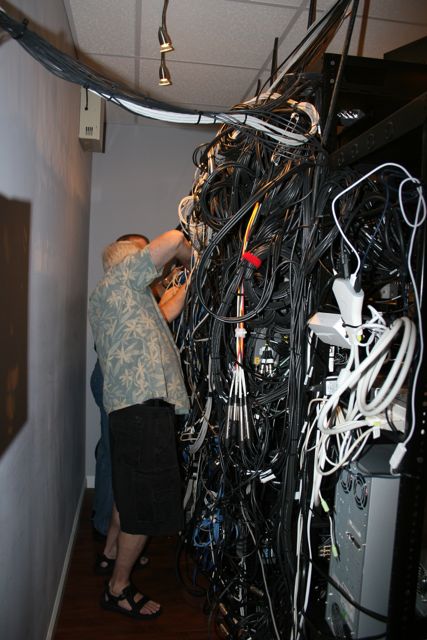 First test was to ensure that everything still worked with just changing out the switch. That’s a very important first step when you’re making a major change to your system involving multiple parts. When feasible, always test your system with each newly introduced part.
 Steve Modica behind the rack checking the clearance for the new switch. Testing the new switch with the old SAN configuration was an easy first step. Then it came time to unpack the shiny goodness that is the Small Tree ST RAID II storage array. All 48TB of it, configured in RAID 4 which gives us about 38 TB of available storage space.
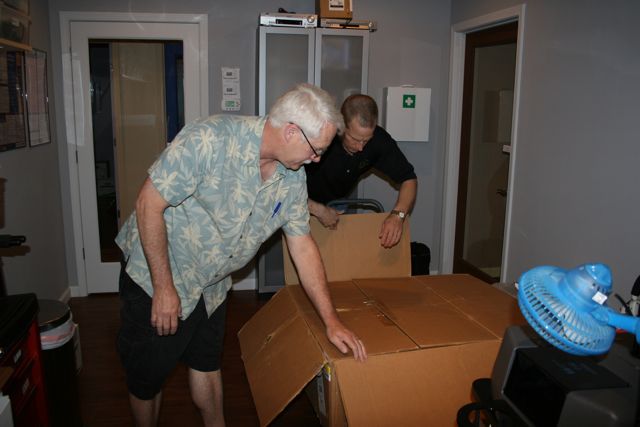 Like Christmas morning!
 Installing the chassis. No, there are no drives in there, so it’s much lighter than it appears. Once the 16 drives are in there, then that thing gets super heavy. You can see our older 16TB RAID sitting up on its side to the left. This single 16 drive chassis replaces 32TB in two chassis. We’ll use the new 48TB for shared storage and keep one of the 16TB for direct connect to our Resolve system for super high speed 4k and higher playback.
 Molly sitting outside The Core, apparently unimpressed with the shiny goodness going on inside. She would apparently rather we play with tennis balls. But I digress…..
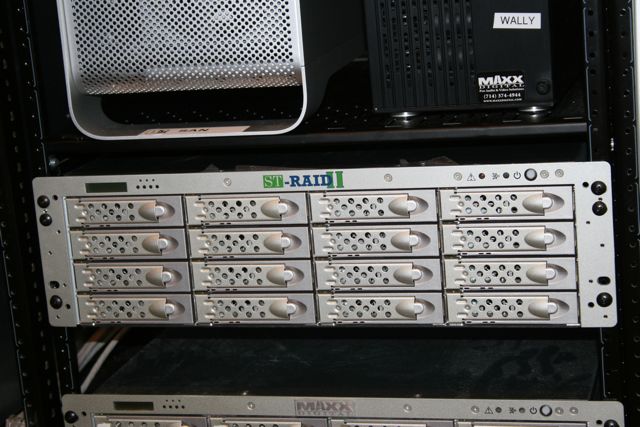 Close-up view of the Small Tree ST RAID II
 And here it is sitting above one of our older arrays. Yeah, I know what you’re thinking. “Gee that looks exactly the same, so why go with Small Tree?” Ok, you’ll find that multiple vendors all use the same chassis, it’s a nice silver box that looks really nice sitting next to the Mac Pros. That’s probably why they all use them. BUT when I say they use the same chassis, that’s exactly what they use. The silver outer box and the drive sleds on the front. At least as far as Small Tree goes, that’s all they use that would be the same as other vendors. Once you get inside with the cards, the electronics and the setup, that’s all proprietary Small Tree and THAT’s where you get the difference between something that “looks the same” and something that operates completely different.
Same with the overall configuration of the entire Ethernet SAN, Small Tree are network experts who really took the concept to a new level and which is why I went with them to configure the entire system and added their storage to equation. The next step was to transfer one of the 16TB arrays to the new array because we needed to use the other for a rare Sunday edit.
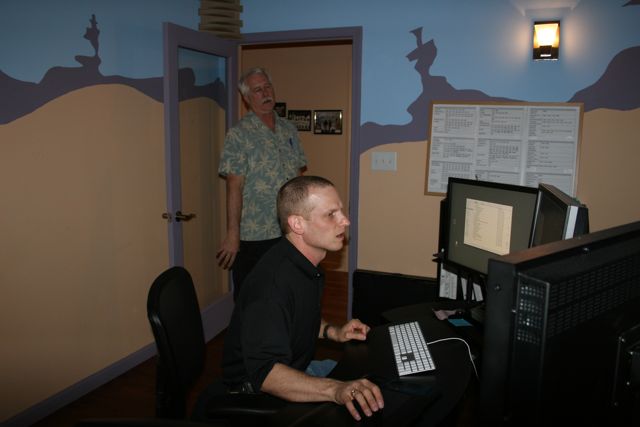 While the transfer was going on, Steve and Chris went through our 6 primary workstations and 7 iMacs to configure all the network settings. They literally had dozens of configurations to set up to get the best combination of speed and stability for our system. Various configurations for the client workstations, the client iMacs and also the SAN computer itself.
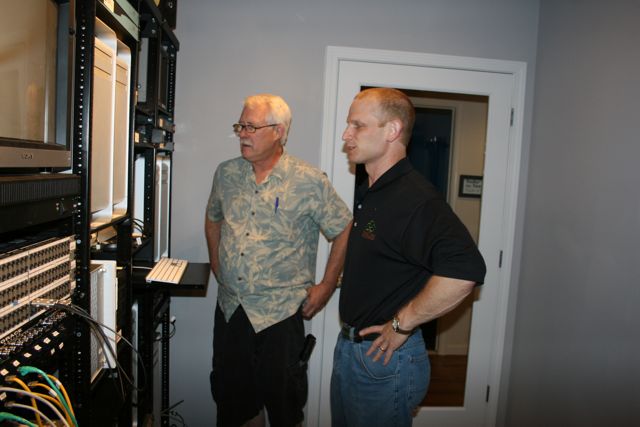 5 hours later, the 16TB was finally transferred over to the SAN so we could start running some speed tests. Here Steve and Chris monitor the SAN while the workstations play video down. After several hours of tweaking and tuning, for the first time since we moved into the new facility, we had all 6 workstations and the four edit suite iMacs all playing video projects simultaneously. It felt great to finally get the full system up and running. By then it was 8:30pm and time to call it a day.
The best part? These guys have more ideas for further tuning tomorrow AND we seem to have discovered an interesting condition or maybe it’s a bug between older and newer Mac Pros. Will require more testing tomorrow, but we seem to be on to something interesting that really shouldn’t be happening.
So tomorrow will be full workday in the shop and these two will be massaging the system further. Tomorrow night I’ll give you all the technical details on our system configuration. We’ve been using Ethernet SAN for almost three years now and the evolution of this concept has come a long way in a short time.

A new behind the scene interview has been posted on the website for the new PBS series, This American Land, being cut at Biscardi Creative Media. This time with Co-Host Caroline Raville. An 8th grade teacher for Gwinnett County Georgia Schools, she’s making her national television debut. Not only a talented host, but she’s also bringing the funk to the series.
Interview with Caroline Raville.


A new behind the scene interview has been posted on the website for the new PBS series, This American Land, being cut at Biscardi Creative Media. This time with Executive Producer, Gary Strieker, a longtime CNN correspondent / bureau chief. Gary and Walter Biscardi, Jr. have been working together for many years now on environmental and global health projects.
